The Click statistics feature allows you to monitor interactions with the related posts displayed by TIP Related Posts Pro.
When enabled, the plugin records clicks on related posts and provides an overview directly from the WordPress administration area.
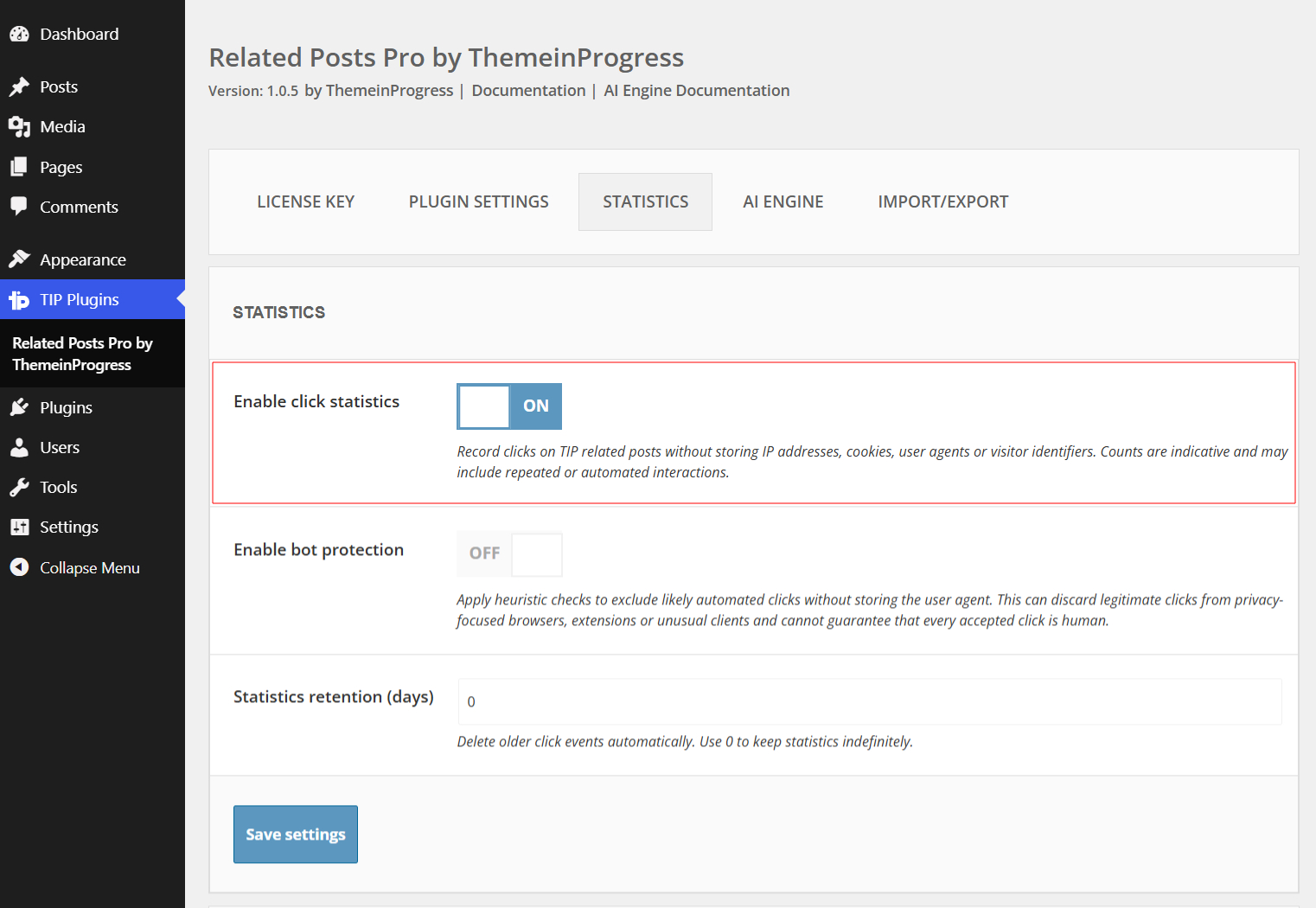
Enable click statistics
- Go to TIP Related Posts Pro.
- Open the Statistics tab.
- Enable Enable click statistics.
- Configure the optional statistics settings.
- Save the settings.
Once enabled, the plugin will start collecting new click events.
Previously generated clicks cannot be recovered.
Database storage and performance
When click statistics are enabled, the plugin creates a dedicated database table to store the recorded click events.
Each tracked click adds a new event to this table.
Click tracking is performed asynchronously and should have a minimal impact on normal site performance. However, on high-traffic websites, collecting a large number of events may increase database storage and activity over time.
You can use the Statistics retention (days) option to automatically remove older events and limit the size of the statistics table.
Customize the click rate limit
By default, the plugin accepts up to 1,000 click events per minute for the same source and destination content pair. This limit helps reduce abnormal automated activity while being high enough to avoid affecting typical visitor traffic.
Developers can customize the limit using the trpp_click_statistics_rate_limit filter:
add_filter('trpp_click_statistics_rate_limit', function ($limit) {

    return 2000;

});
Return 0 to disable the server-side rate limit:
add_filter('trpp_click_statistics_rate_limit', function ($limit) {

    return 0;

});
Add this code through a custom plugin, a child theme, or a code-snippet manager. Do not edit the plugin files directly, because changes will be overwritten during updates.
Privacy
Click statistics are designed to collect only the information required to measure interactions with related posts.
The plugin does not store:
- IP addresses
- Cookies
- User agents
- Visitor identifiers
For each recorded event, the plugin stores the clicked content, the source content, the date and time, and the device type.
Statistics should be considered indicative, since repeated interactions over time or automated interactions may still be included.
Bot protection
You can optionally enable Enable bot protection.
When enabled, the plugin applies heuristic checks to reject interactions that are likely to have been generated automatically.
These checks can reduce automated traffic in the statistics, but they cannot guarantee that every accepted click comes from a human visitor. In some cases, privacy-focused browsers, extensions, or unusual clients may also be excluded.
Statistics retention
The Statistics retention (days) option defines how long individual click events are stored.
For example, setting the value to 30 automatically removes events older than 30 days.
Set the value to 0 to keep statistics indefinitely.
Statistics overview
The Statistics overview section provides filters that can be used to analyze specific interactions.
You can filter the recorded events by:
- Day
- Time range
- Device
- Clicked content
- Source content
The Clicked content and Source content selectors include only contents that already appear in the recorded statistics.
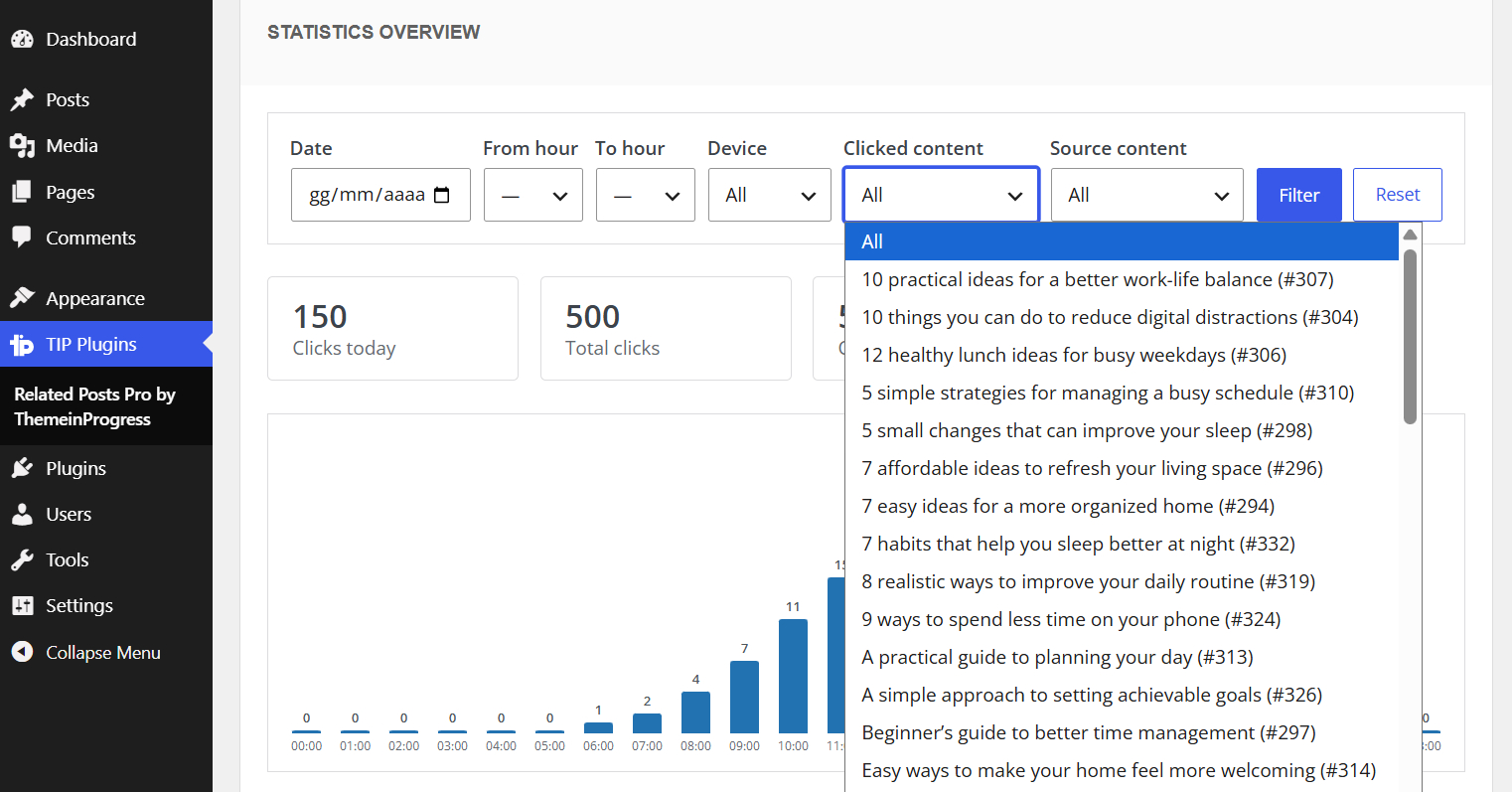
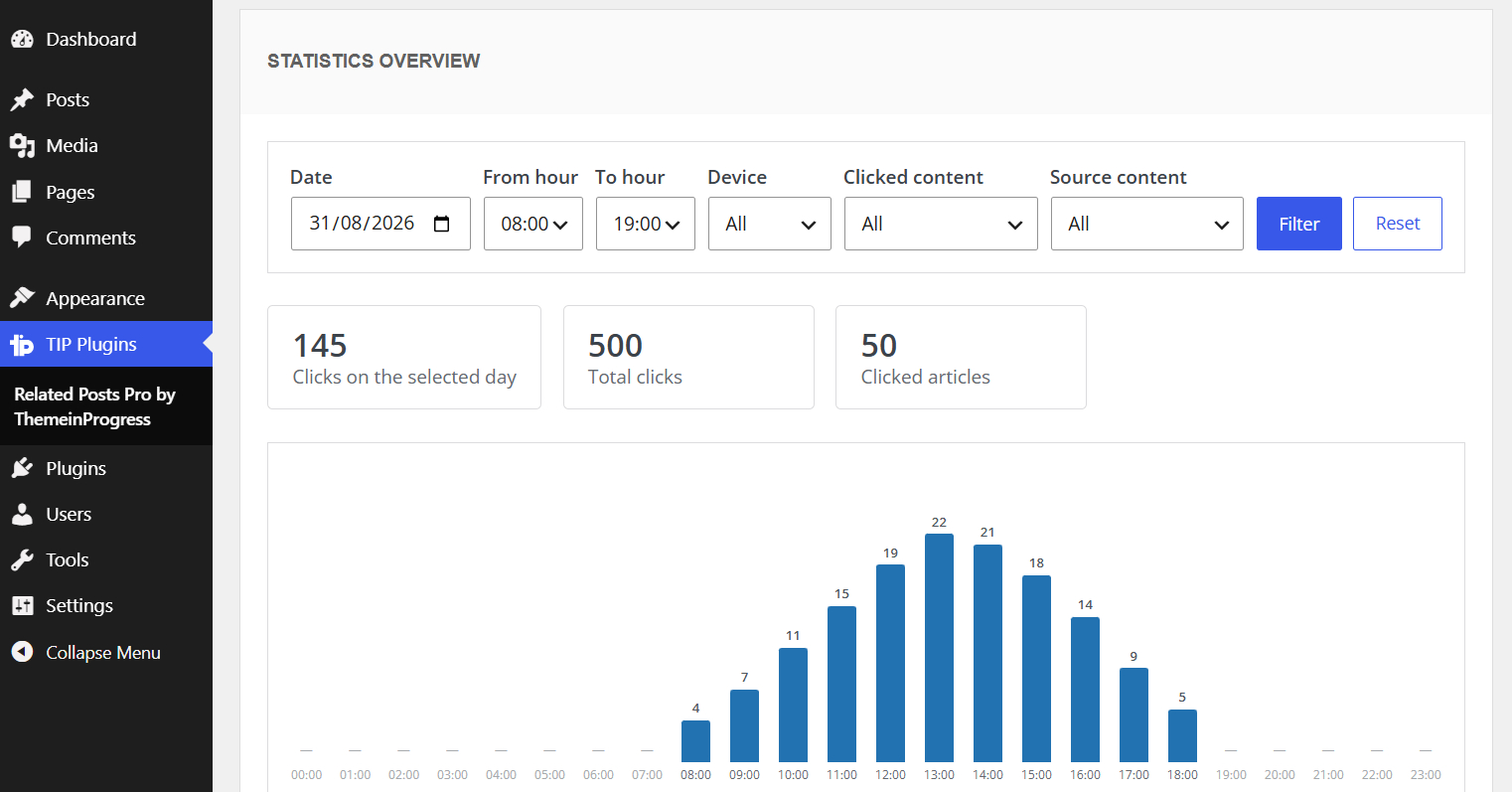
The overview displays three main values:
- Clicks today / Clicks on the selected day – the number of clicks recorded during the displayed day.
- Total clicks – the total number of click events matching the current filters.
- Clicked articles – the number of different destination articles that received at least one click.
The hourly chart always displays all 24 hours of the selected day and shows the number of recorded clicks for each hour.
When a time range is selected, hours outside the selected range remain visible in the chart but are displayed as inactive.
Click events
Below the overview, you can find the individual recorded events.
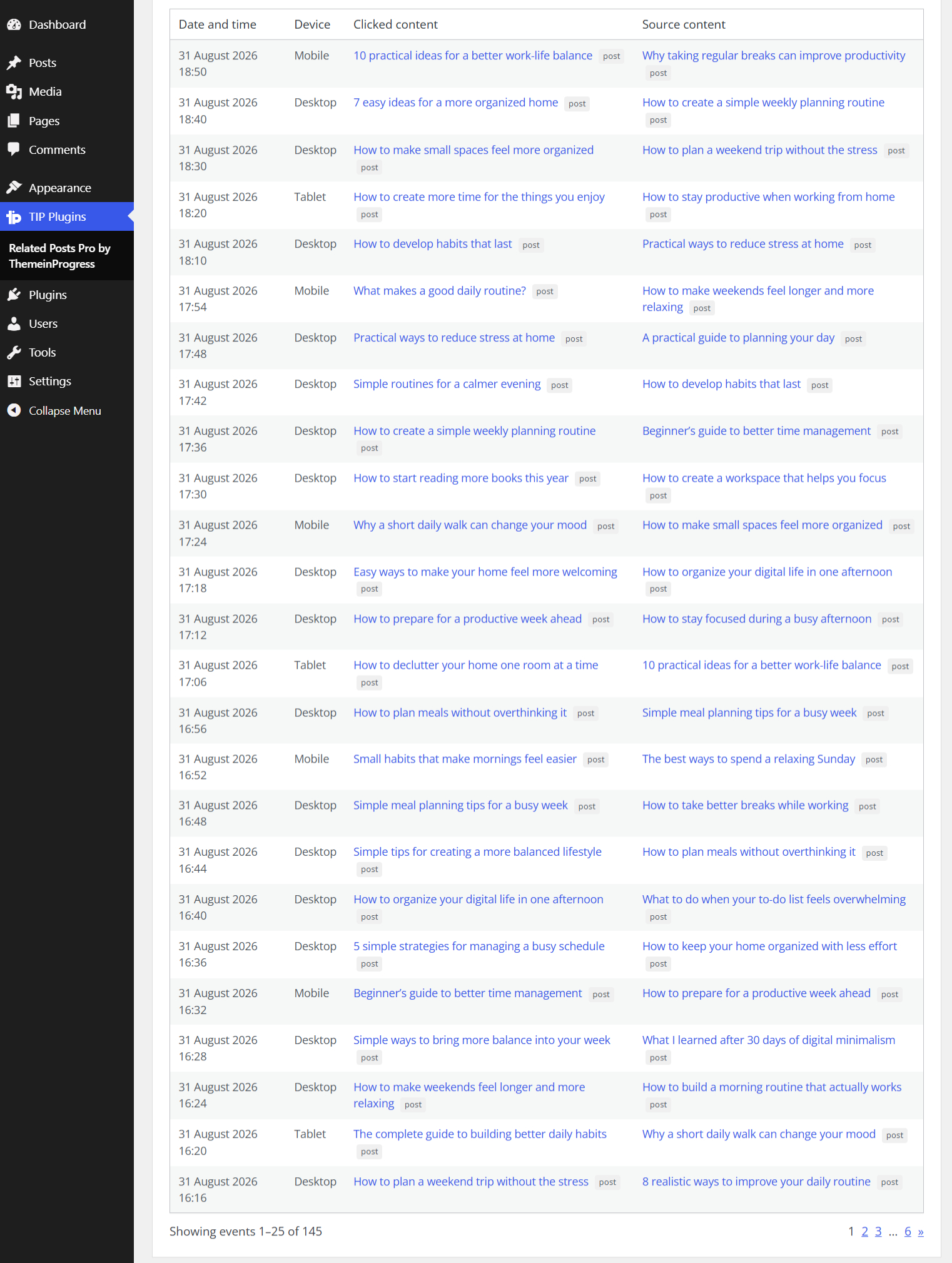
For each click, the table displays:
- Date and time
- Device
- Clicked content
- Source content
The Clicked content is the related content selected by the visitor, while the Source content is the content where that related content was displayed.
Content titles link to their public URLs, while the label displayed next to each title indicates its WordPress post type.
When multiple events are available, the list is paginated in groups of 25 results per page.
Important notes
Click tracking applies to related posts that link to published, publicly viewable WordPress content.
Shortcodes that use the default permalink of the selected content are tracked.
A shortcode with a custom URL is also tracked when the URL is internal and resolves to published WordPress content.
External URLs and internal URLs that do not resolve to WordPress content are not tracked.
Very rapid repeated interactions with the same source and destination are ignored. However, because the system does not identify individual visitors, the same visitor can generate additional click events over time.
Reset statistics
The Reset data section allows you to permanently delete all recorded click events.
This section is displayed only when the plugin license is active and the statistics table has already been created by enabling click statistics and saving the settings at least once.
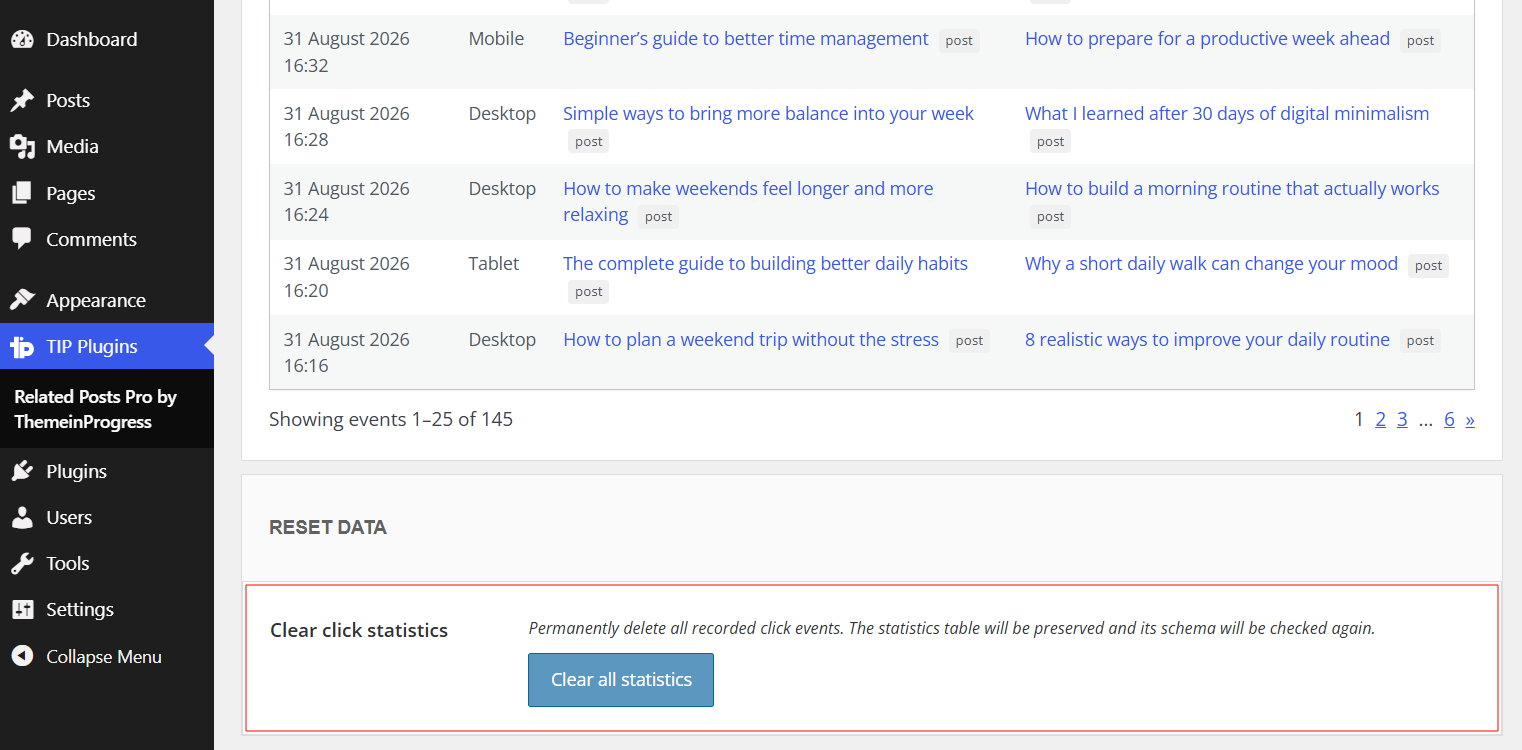
Click Clear all statistics and confirm the operation to remove the collected data.
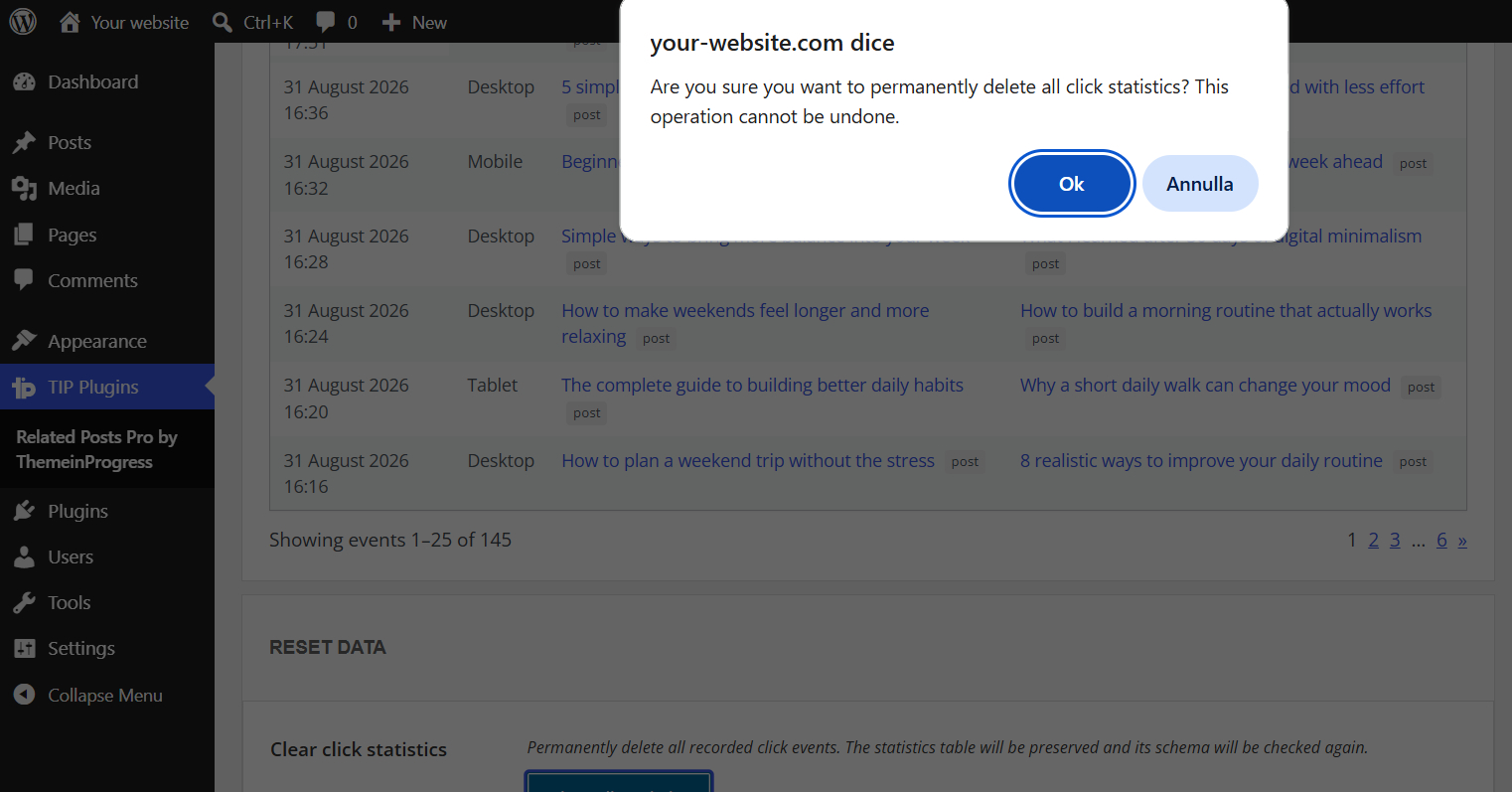
This operation cannot be undone.
The statistics database table itself is preserved and its structure is checked again so that new events can continue to be recorded.