Please follow these steps to configure the plugin correctly.
1. Go to TIP Plugins > TIP Next Post Pro and open the Plugin Settings tab.
Below is the list of all available options.
Appearance settings
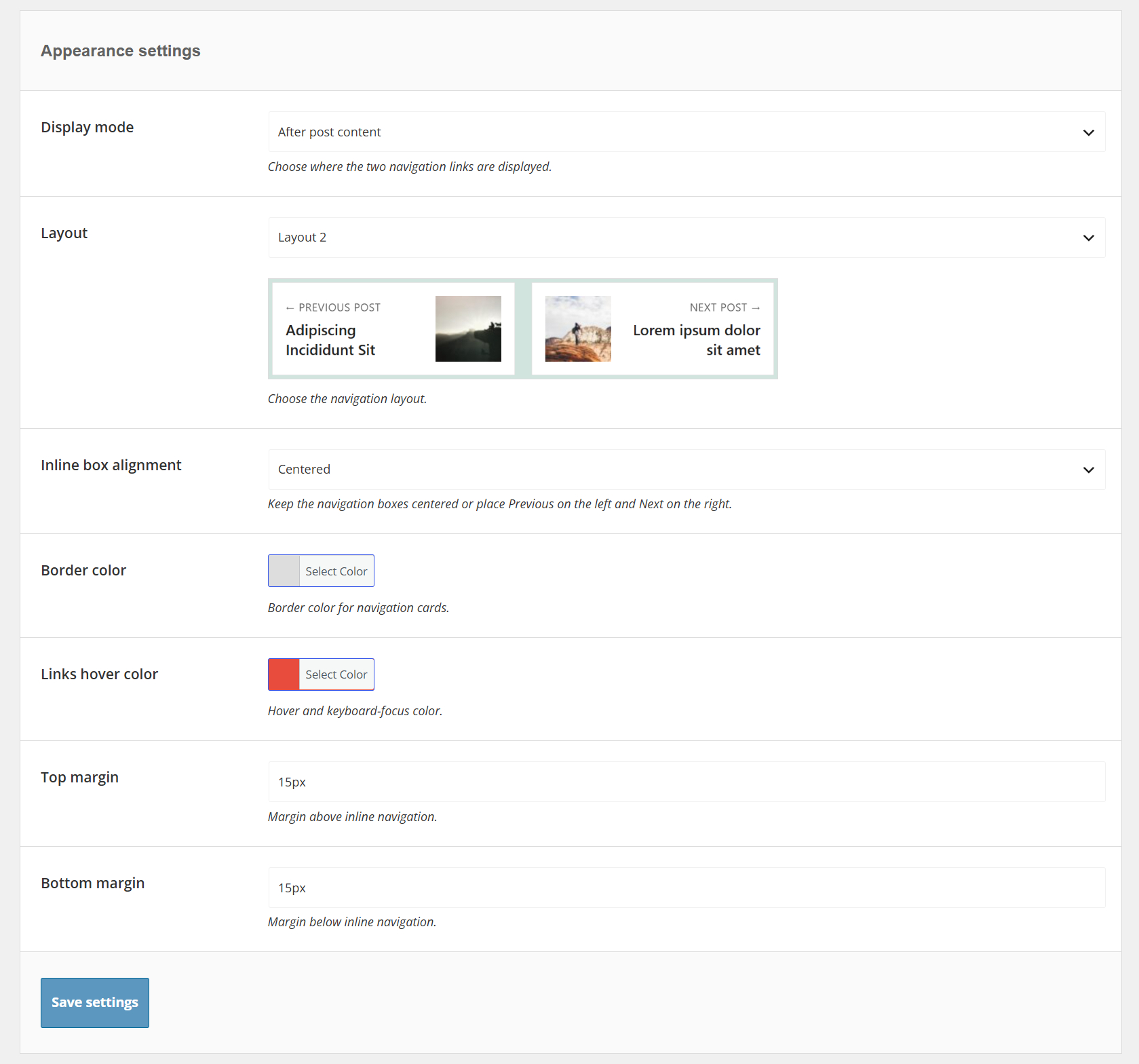
– Display mode, Choose where the post navigation will be displayed.
- After post content – Display the navigation directly after the article content.
- Floating display – Display floating navigation cards that slide in from the sides of the browser window when the visitor approaches the end of the article.
- Both – Enable both the inline and floating navigation.
– Layout, Choose the layout used for the previous/secondary and next/primary navigation cards.
- Layout 1 – Display the navigation label and article title without a featured image.
- Layout 2 – Display the article title together with a compact featured image.
- Layout 3 – Display the article title together with a larger featured image positioned at the outer edge of the navigation card.
– Inline box alignment, Choose how the two navigation cards are positioned when displayed after the article content.
- Centered – Keep the navigation cards centered within the content area.
- Previous left / Next right – Place the previous/secondary card on the left and the next/primary card on the right.
– Border color, Choose the border color used for the navigation cards.
– Links hover color, Choose the color used when navigation links are hovered or receive keyboard focus.
– Top margin, Specify the margin above the inline navigation.
– Bottom margin, Specify the margin below the inline navigation.
When Floating display or Both is selected, the following additional options become available:
– Floating bottom offset, Set the distance between the floating navigation and the bottom edge of the browser window.
– Floating left offset, Set the distance between the previous/secondary floating card and the left edge of the browser window.
– Floating right offset, Set the distance between the next/primary floating card and the right edge of the browser window.
Navigation labels
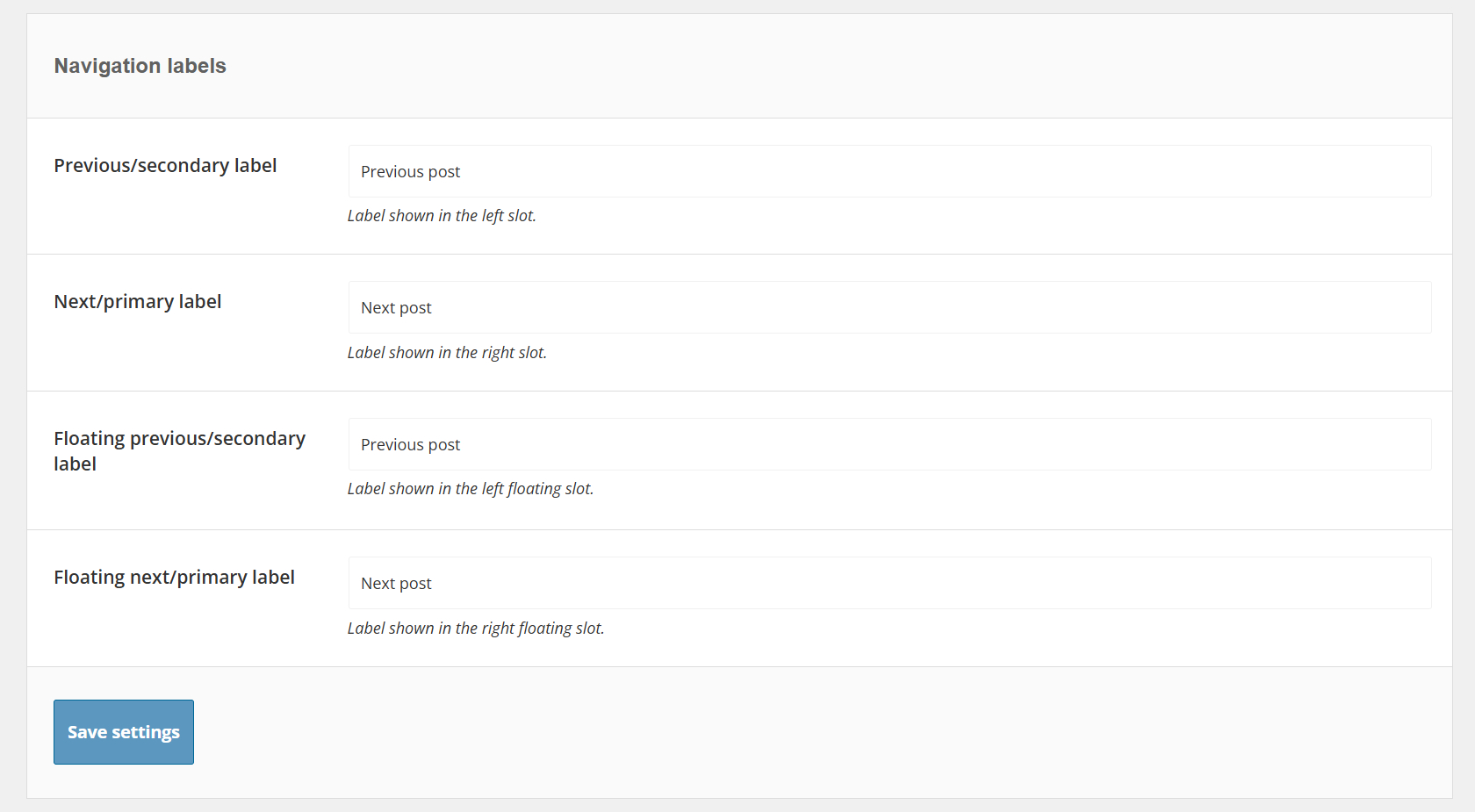
– Previous/secondary label, Set the label displayed in the left navigation slot.
The default value is Previous post.
– Next/primary label, Set the label displayed in the right navigation slot.
The default value is Next post.
– Floating previous/secondary label, Set the label displayed in the left floating navigation card.
– Floating next/primary label, Set the label displayed in the right floating navigation card.
The inline and floating labels can be configured independently. This is particularly useful when using a relevance-based search method, where labels such as You may also like or Read next may be more appropriate than the standard Previous/Next terminology.
Typography settings
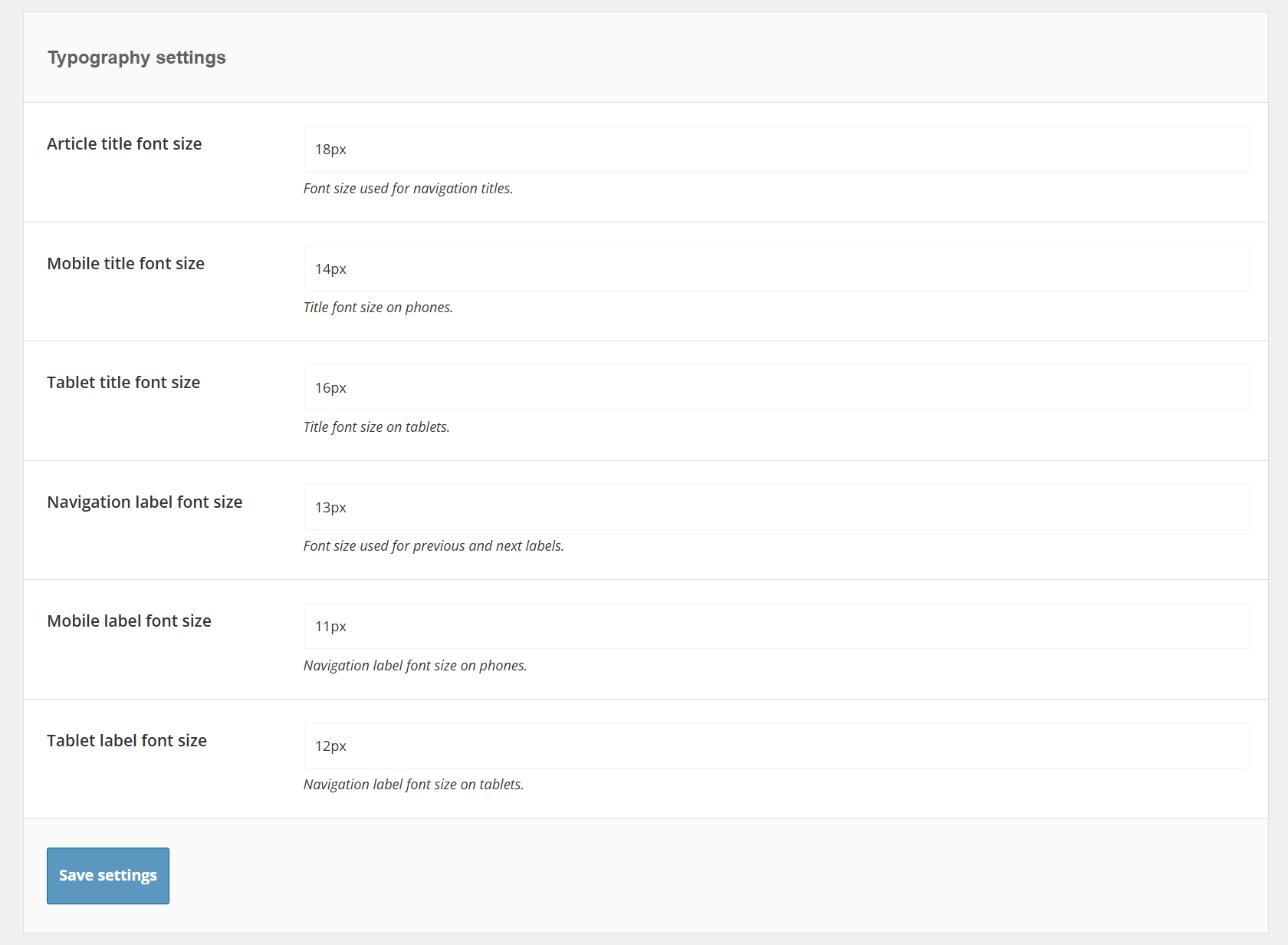
– Article title font size, Specify the font size used for navigation article titles.
– Mobile title font size, Specify the article title font size on mobile devices.
– Tablet title font size, Specify the article title font size on tablet devices.
– Navigation label font size, Specify the font size used for the previous/secondary and next/primary labels.
– Mobile label font size, Specify the navigation label font size on mobile devices.
– Tablet label font size, Specify the navigation label font size on tablet devices.
Navigation/search settings
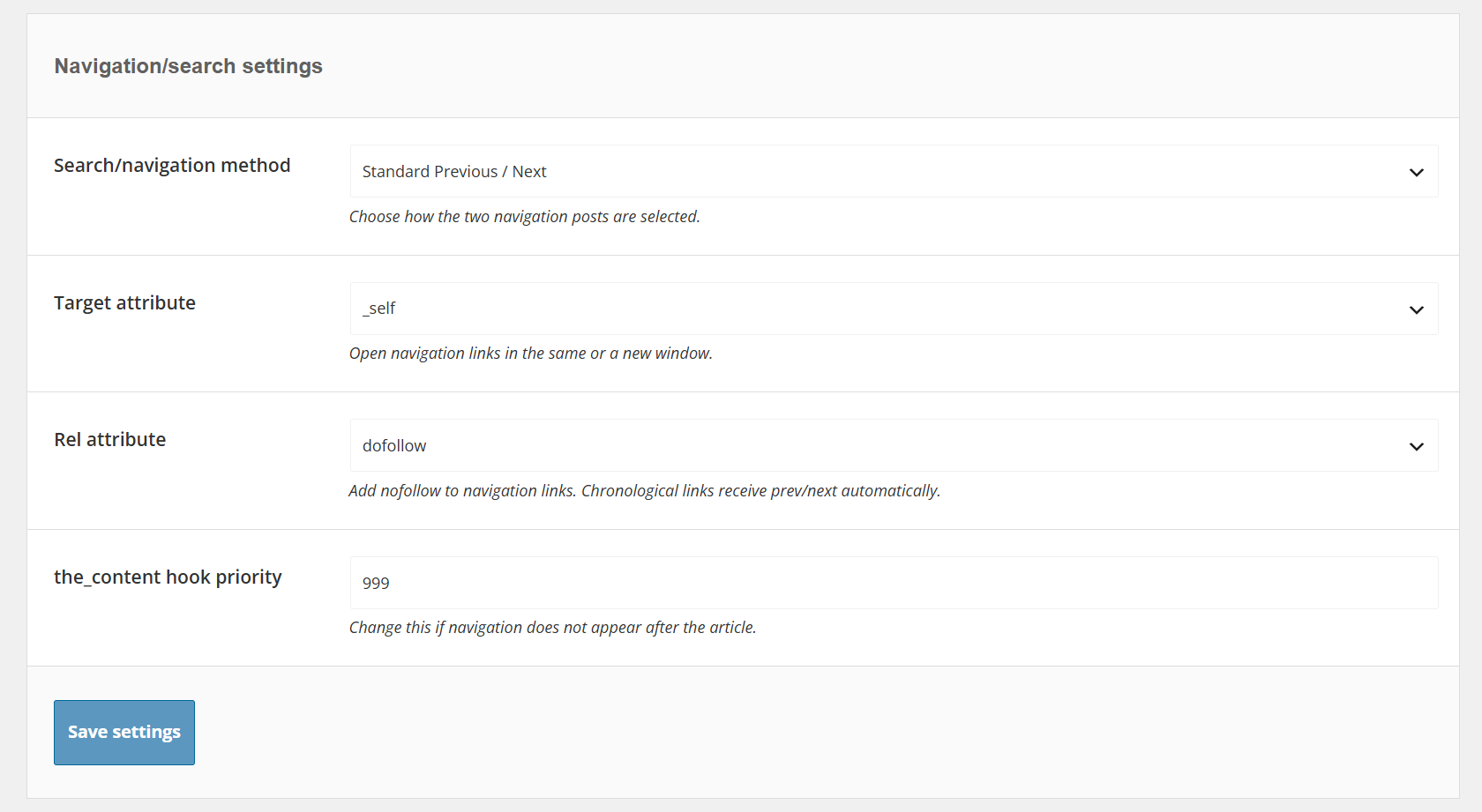
– Search/navigation method, Choose how TIP Next Post Pro should retrieve the two navigation posts.
Available methods include:
- Standard Previous / Next – Use the standard chronological WordPress previous and next posts.
- Previous / Next in the same category – Retrieve chronological posts that share a category with the current article.
- Previous / Next with the same tag – Retrieve chronological posts that share a tag with the current article.
- Previous / Next in the same category and tag – Retrieve chronological posts that match both the category and tag requirements.
- Based on post categories – Retrieve posts based on shared categories.
- Based on post tags – Retrieve posts based on shared tags.
- Categories or post tags – Retrieve posts that share categories or tags.
- Post title – full title – Use the complete current article title to search for matching posts.
- Post title – full title + category – Use the complete title and restrict results by category.
- Post title – full title + tag – Use the complete title and restrict results by tag.
- Post title – each word – Use individual words from the current article title to search for matching posts.
- Post title – each word + category – Use individual title words and restrict results by category.
- Post title – each word + tag – Use individual title words and restrict results by tag.
- Custom keywords – Retrieve posts using manually defined keywords.
- Custom keywords + category – Use custom keywords and restrict results by category.
- Custom keywords + tag – Use custom keywords and restrict results by tag.
- AI Engine – Use semantic similarity to identify the most relevant posts. This option is available when the AI Engine is configured and enabled.
For relevance-based methods, the first result is used as the next/primary post and the second result as the previous/secondary post.
For chronological methods, the left and right slots contain the actual previous and next WordPress posts.
– Order by, Choose how results are ordered when using a relevance-based search method other than AI Engine.
- Post title
- Randomly
- Post date
– Sort order, Choose the ordering direction for relevance-based search methods other than AI Engine.
- Ascending
- Descending
The Order by and Sort order options are hidden when using the standard chronological navigation methods or AI Engine.
– AI Engine filter, Optionally restrict AI semantic results to posts that share taxonomy terms with the current article.
- None
- Categories
- Tags
- Categories and tags
This option is displayed only when AI Engine is selected.
When one of the Post title – each word methods is selected, additional title filtering options become available.
– Post title filtering, Choose how individual words from the current post title should be processed.
- Disable – Use the title words without additional filtering.
- Use only specific words – Only use the specified words.
- Exclude specific words – Ignore the specified words.
– Use only specific words, Enter the words that can be used by the title search engine. Separate multiple words with a vertical bar (|).
– Exclude specific words, Enter words that must be ignored by the title search engine. Separate multiple words with a vertical bar (|).
– Target attribute, Choose where navigation links should be opened.
- _self – Open the article in the same browser window.
- _blank – Open the article in a new browser window or tab.
– Rel attribute, Choose whether to add the nofollow attribute to navigation links.
- dofollow
- nofollow
When a true chronological navigation method is used, TIP Next Post Pro automatically adds the appropriate prev or next relation to the links.
– the_content hook priority, Change the priority of the the_content filter if the automatic navigation does not appear correctly after the article content.
Featured image settings
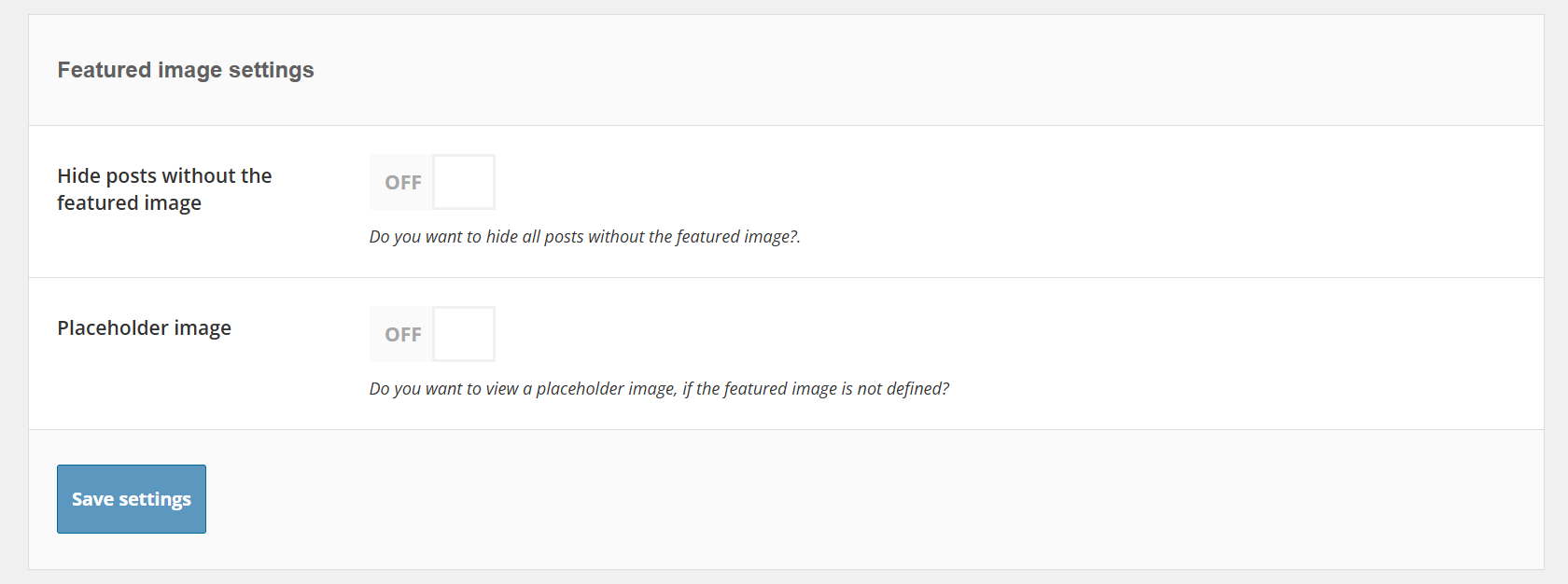
These settings apply to layouts that display a featured image.
– Hide posts without the featured image, Enable this option to exclude posts that do not have a featured image.
– Placeholder image, Display the plugin placeholder image when a navigation post does not have a featured image.
Filter settings
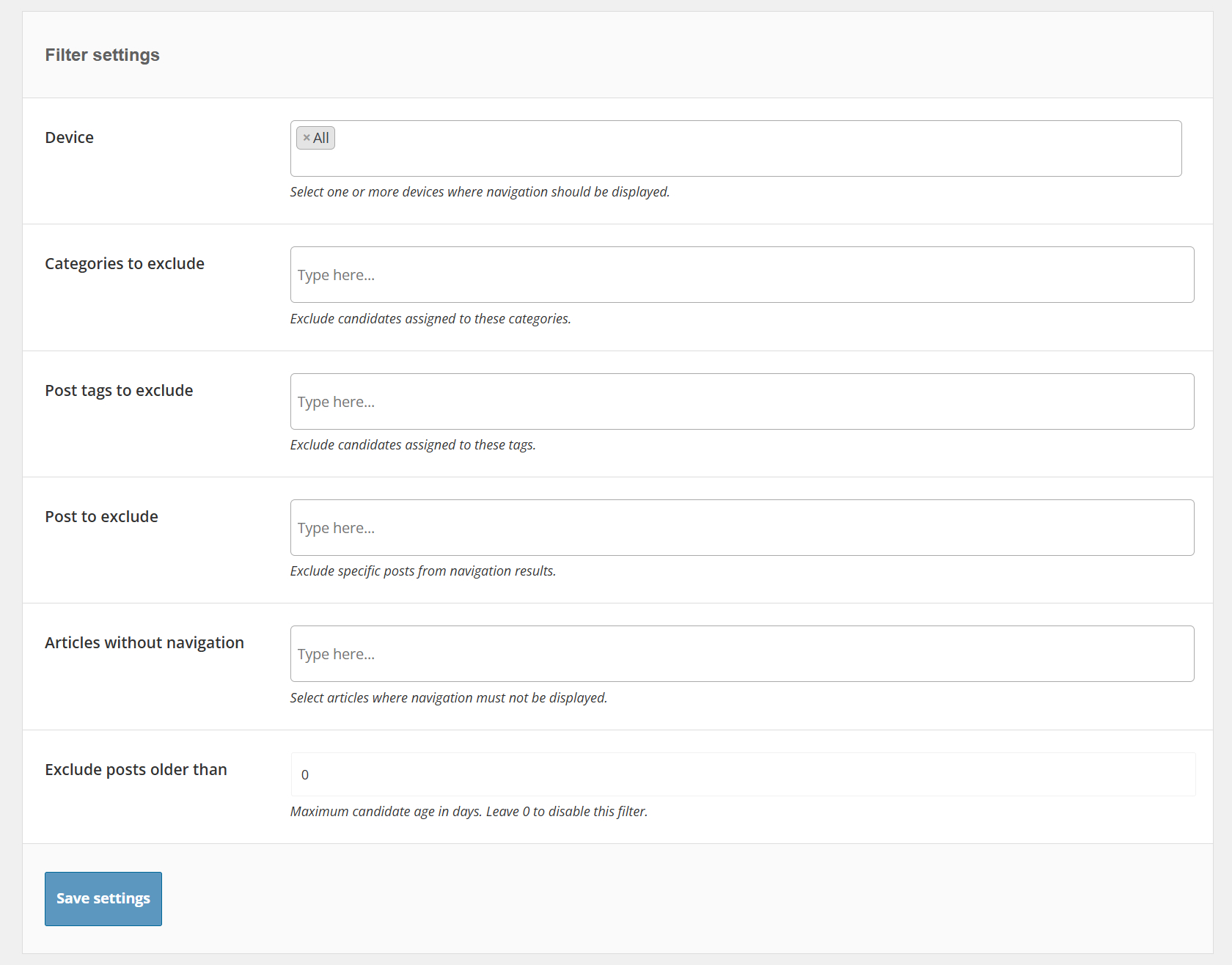
– Device, Select one or more devices where the navigation should be displayed.
- All
- Desktop
- Mobile
- Tablet
– Categories to exclude, Exclude posts assigned to one or more selected categories from the navigation results.
– Post tags to exclude, Exclude posts assigned to one or more selected tags from the navigation results.
– Post to exclude, Exclude specific posts from the navigation results.
– Articles without navigation, Select specific articles where TIP Next Post Pro navigation should not be displayed.
– Exclude posts older than, Set the maximum age, in days, of posts that can be used as navigation results.
Set this option to 0 to disable the age filter.
Miscellaneous settings
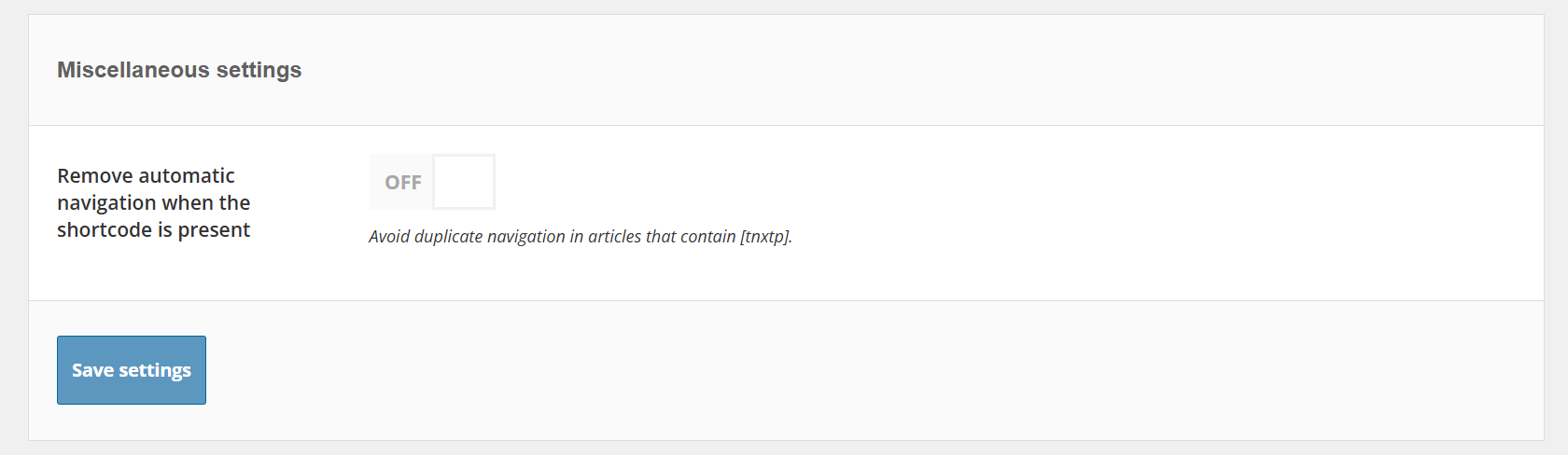
– Remove automatic navigation when the shortcode is present, Disable the automatically generated navigation in articles or pages where the shortcode is already present.
This option prevents the same navigation from being displayed twice when the shortcode is used manually.
AMP settings
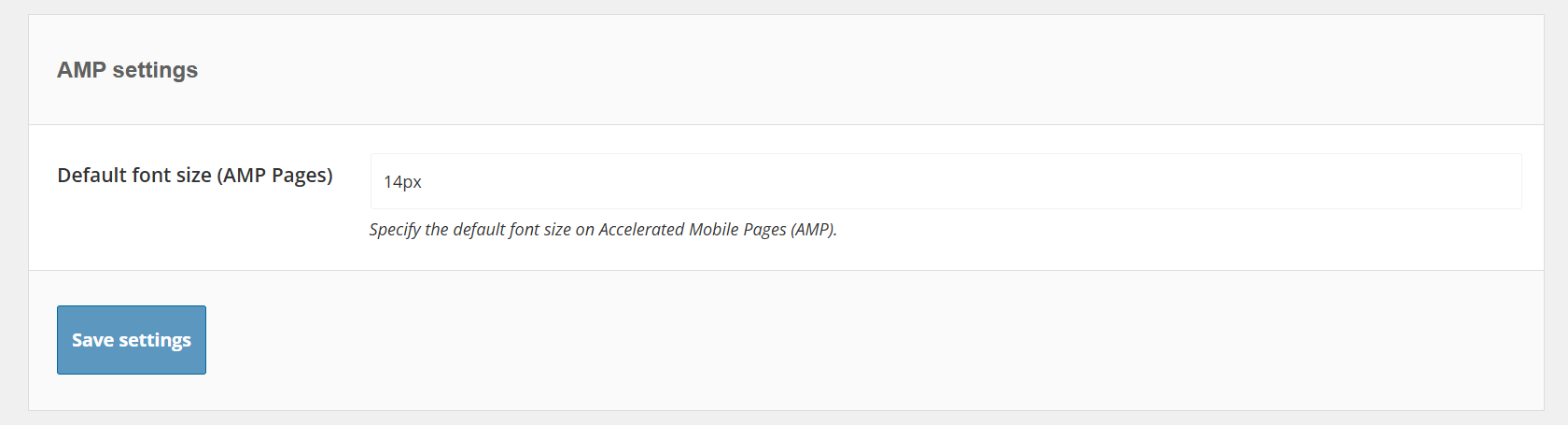
The AMP settings section is displayed only when a supported AMP plugin is active.
– Default font size (AMP Pages), Specify the default navigation font size used on Accelerated Mobile Pages.
Custom post types settings
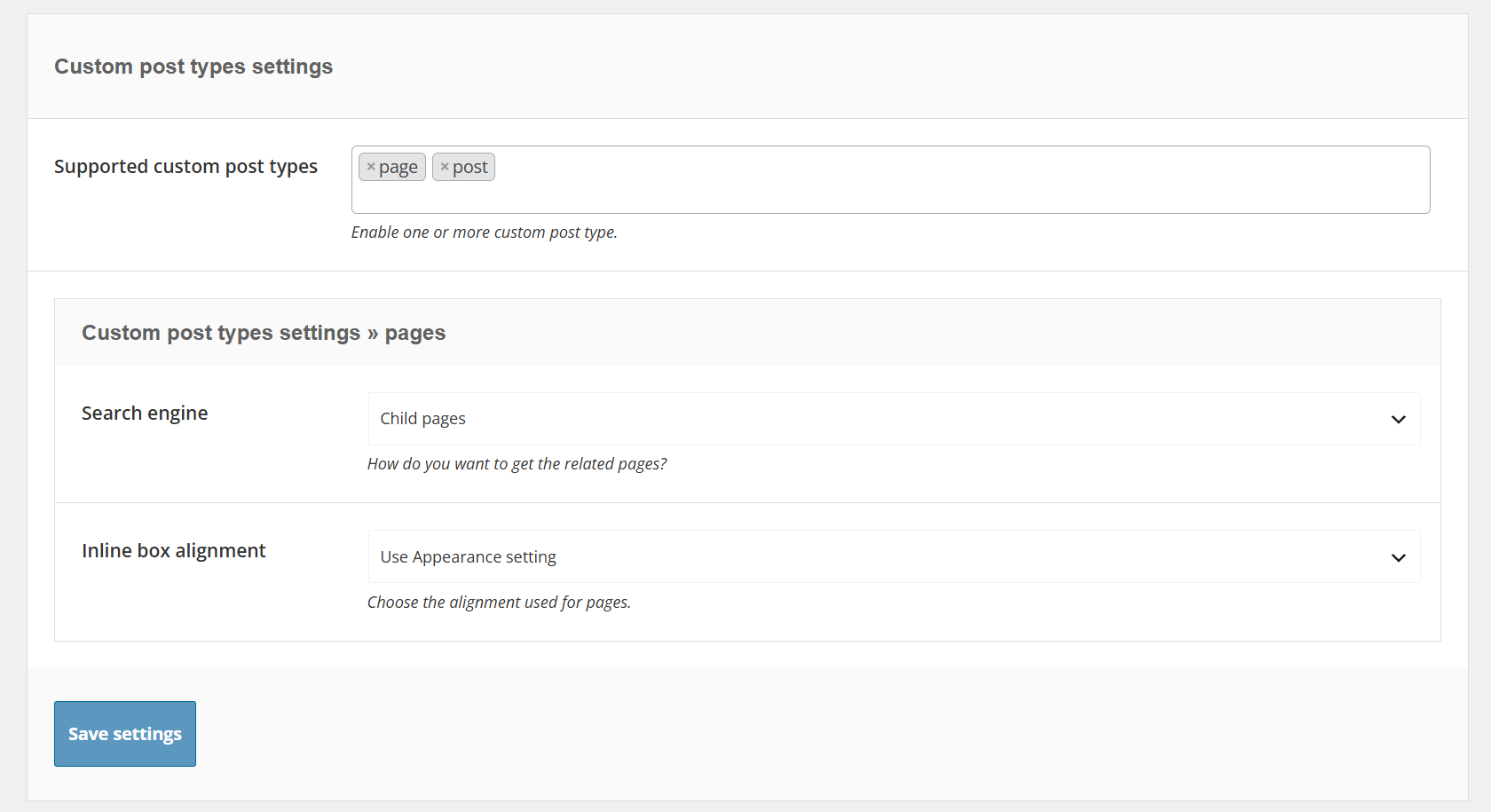
– Supported custom post types, Enable one or more supported custom post types where TIP Next Post Pro navigation should be available.
Additional settings are displayed automatically for each enabled custom post type.
– Search engine, Choose the navigation method used for the selected custom post type.
Depending on the taxonomies supported by the custom post type, the available methods can include:
- Standard Previous / Next
- Previous / Next in the same category
- Previous / Next with the same tag
- Previous / Next in the same category and tag
- Custom taxonomy
For WooCommerce products, the category and tag options automatically refer to product categories and product tags.
– Inline box alignment, Choose the inline navigation alignment for the selected custom post type.
- Use Appearance setting
- Centered
- Previous left / Next right
– Filter by, When Custom taxonomy is selected as the search engine, choose one or more taxonomies that should be used to retrieve navigation posts.
WordPress pages
When WordPress pages are enabled, additional navigation methods are available.
– Search engine, Choose how the previous/secondary and next/primary pages should be retrieved.
Depending on the configuration, available options include:
- Standard Previous / Next
- Child pages
- Custom keywords
– Inline box alignment, Choose the navigation alignment used for WordPress pages or inherit the general Appearance setting.