Please follow these steps to configure the plugin correctly.
1. Go to TIP Plugins > TIP Next Post and open the Plugin Settings tab.
Below is the list of all available options.
Appearance settings
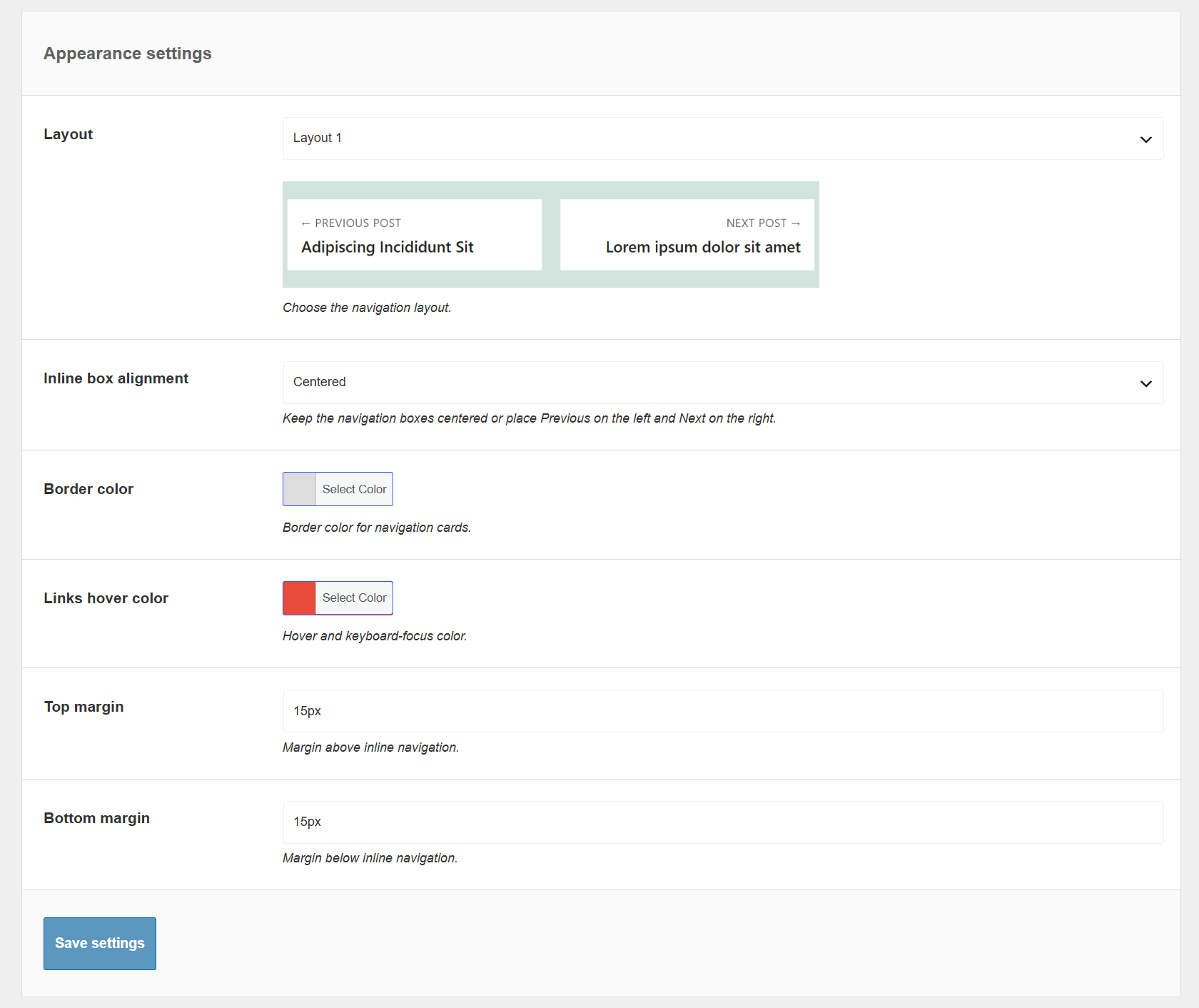
– Layout, Choose the navigation layout.
- Layout 1 – Display the previous and next navigation using the navigation label and article title.
- Layout 3 – Display the navigation label and article title together with the featured image, when available.
– Inline box alignment, Choose how the Previous and Next navigation boxes are positioned after the article content.
- Centered – Keep the two navigation boxes centered within the content area.
- Previous left / Next right – Position the Previous post box on the left and the Next post box on the right.
– Border color, Choose the border color used for the navigation boxes.
– Links hover color, Choose the color used when navigation links are hovered or receive keyboard focus.
– Top margin, Specify the margin above the post navigation.
– Bottom margin, Specify the margin below the post navigation.
Navigation labels
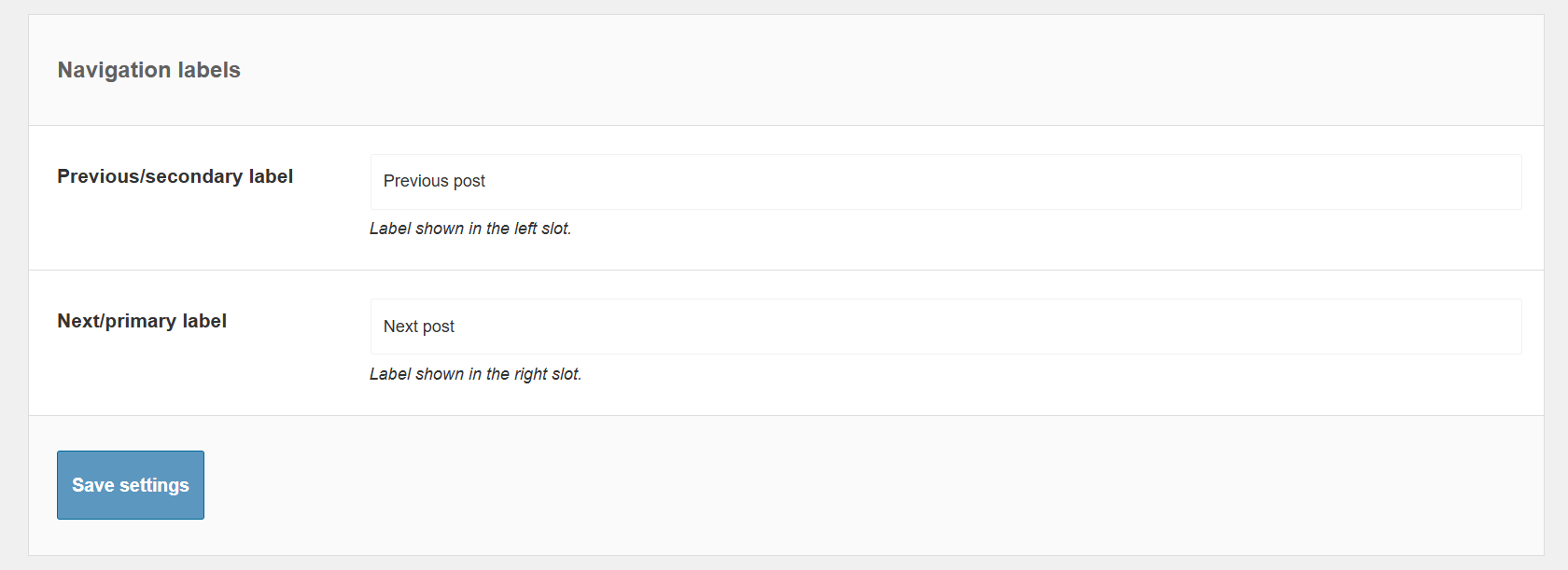
– Previous/secondary label, Set the label displayed in the left navigation box.
The default value is Previous post.
– Next/primary label, Set the label displayed in the right navigation box.
The default value is Next post.
Navigation/search settings
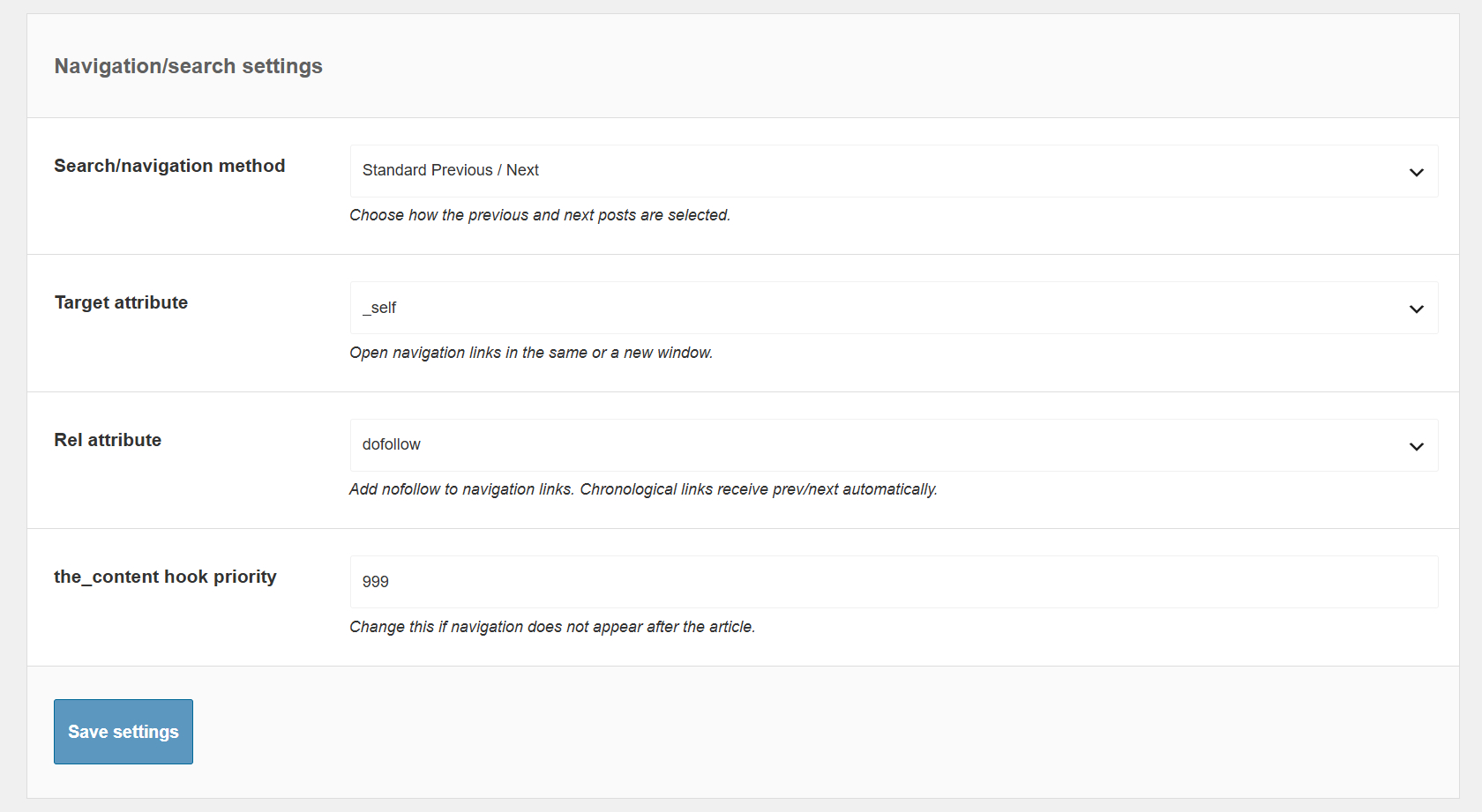
– Search/navigation method, Choose how the Previous and Next posts are selected.
Available methods:
- Standard Previous / Next – Display the standard chronological Previous and Next posts provided by WordPress.
- Previous / Next in the same category – Display the chronological Previous and Next posts that share a category with the current article.
- Previous / Next with the same tag – Display the chronological Previous and Next posts that share a tag with the current article.
– Target attribute, Choose where navigation links should be opened.
- _self – Open the selected post in the same browser window.
- _blank – Open the selected post in a new browser window or tab.
– Rel attribute, Choose whether to add the nofollow attribute to navigation links.
- dofollow
- nofollow
Chronological navigation links automatically receive the appropriate prev or next relation.
– the_content hook priority, Change the priority of the the_content filter if the post navigation does not appear correctly after the article content.
Miscellaneous settings
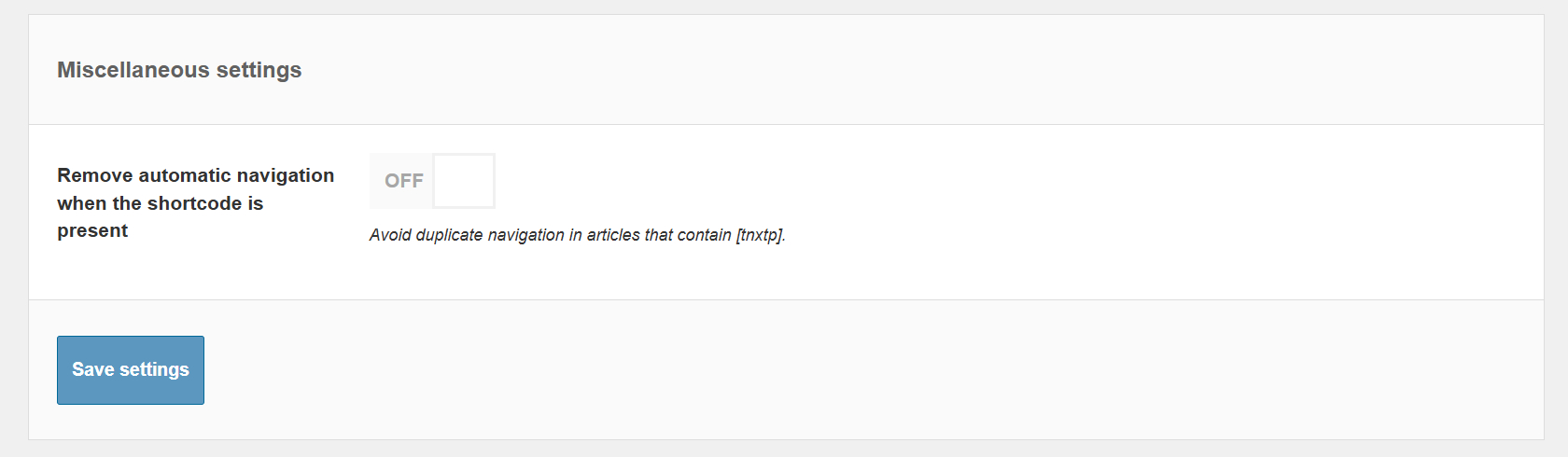
– Remove automatic navigation when the shortcode is present, Disable the automatically generated navigation when the shortcode is already present in the current article.
This option prevents the same navigation from being displayed twice when you manually insert the shortcode.