If needed, you can use the shortcode to manually display the post navigation in a specific position.
When used without any attributes in a single post, the shortcode automatically uses the options configured under TIP Next Post Pro > Plugin Settings.
The following attributes are available:
- layout, Override the layout configured in the plugin settings.
- layout-1
- layout-2
- layout-3
- engine, Override the navigation/search method configured in the plugin settings.
- adjacent – Standard Previous / Next
- adjacent_category – Previous / Next in the same category
- adjacent_tag – Previous / Next with the same tag
- adjacent_category_tag – Previous / Next in the same category and tag
- categories – Based on post categories
- tags – Based on post tags
- both – Categories or post tags
- post_title_1 – Post title, using the full title
- post_title_1_category_filter – Full post title + category
- post_title_1_tag_filter – Full post title + tag
- post_title_2 – Post title, using each word
- post_title_2_category_filter – Each title word + category
- post_title_2_tag_filter – Each title word + tag
- keywords – Custom keywords
- keywords_category_filter – Custom keywords + category
- keywords_tag_filter – Custom keywords + tag
- ai_engine – AI Engine
- posts_array, Manually specify up to two post IDs, separated by a comma. When this attribute is used, the automatic navigation/search method is ignored.
- target, Set _blank to open navigation links in a new browser window or tab. If omitted, the value configured in the plugin settings is used.
- rel, Set the link relation attribute.
- nofollow
If omitted, the value configured in the plugin settings is used. Chronological navigation automatically receives the appropriate prev or next relation.
Examples
Use the current plugin settings:
Use Layout 2:
Use Layout 3:
Manual post order
When using the posts_array attribute, a maximum of two posts can be selected.
The first post ID is used as the next/primary post displayed on the right, while the second post ID is used as the previous/secondary post displayed on the left.
If one of the specified IDs is the current article, it is automatically excluded.
Shortcode Generator
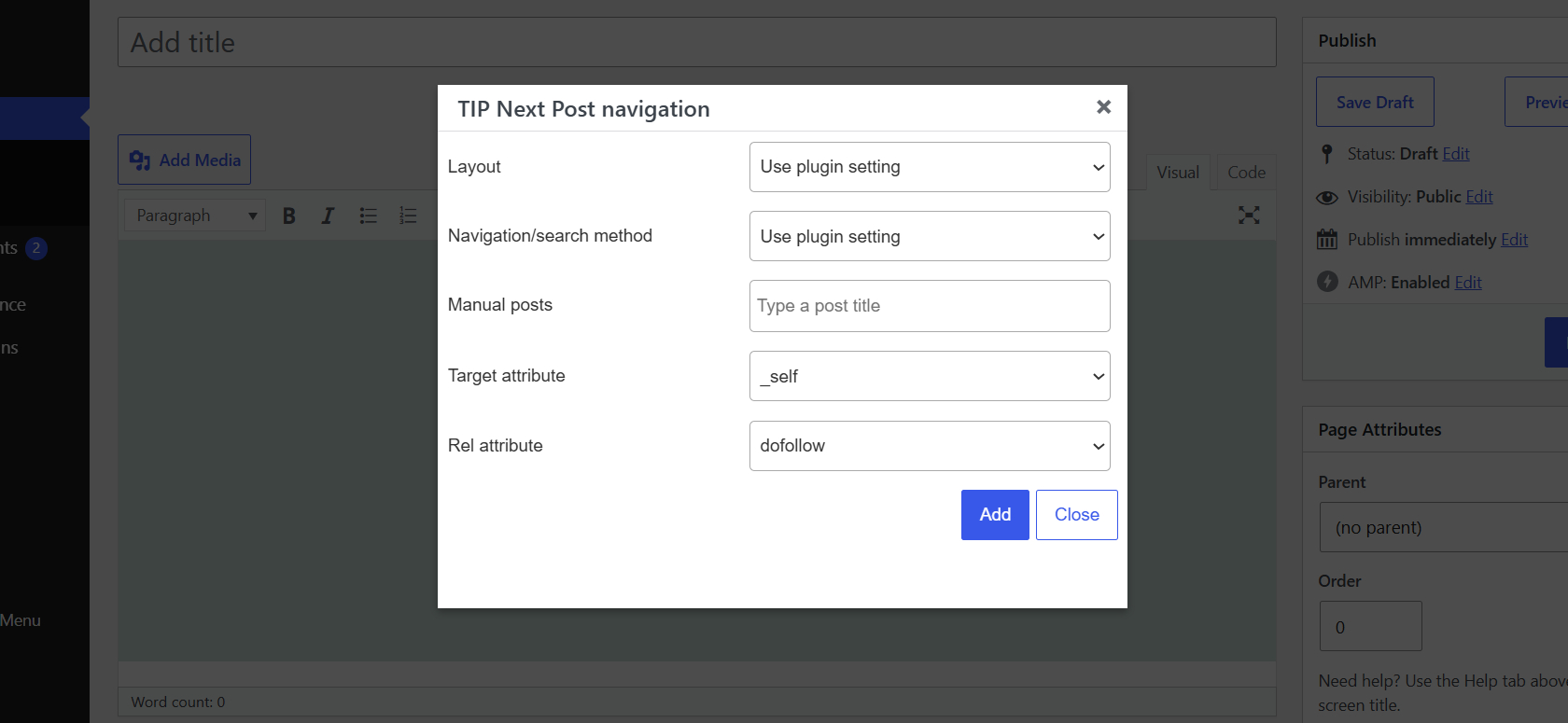
You can use the built-in shortcode generator to create the shortcode without manually entering its attributes.
The generator allows you to select:
- Layout
- Navigation/search method
- Up to two manual posts
- Target attribute
- Rel attribute
When an option is left unchanged, the corresponding value configured in the plugin settings will be used.
The shortcode generator is available in the WordPress Classic Editor.
When using the Block Editor, you can manually insert inside a Shortcode block.