The Internal links count feature allows you to keep track of the number of internal links generated by Internal Linking of Related Contents Pro for each post, page, or supported custom post type.
The count reflects the related contents actually generated by the plugin according to the current settings.
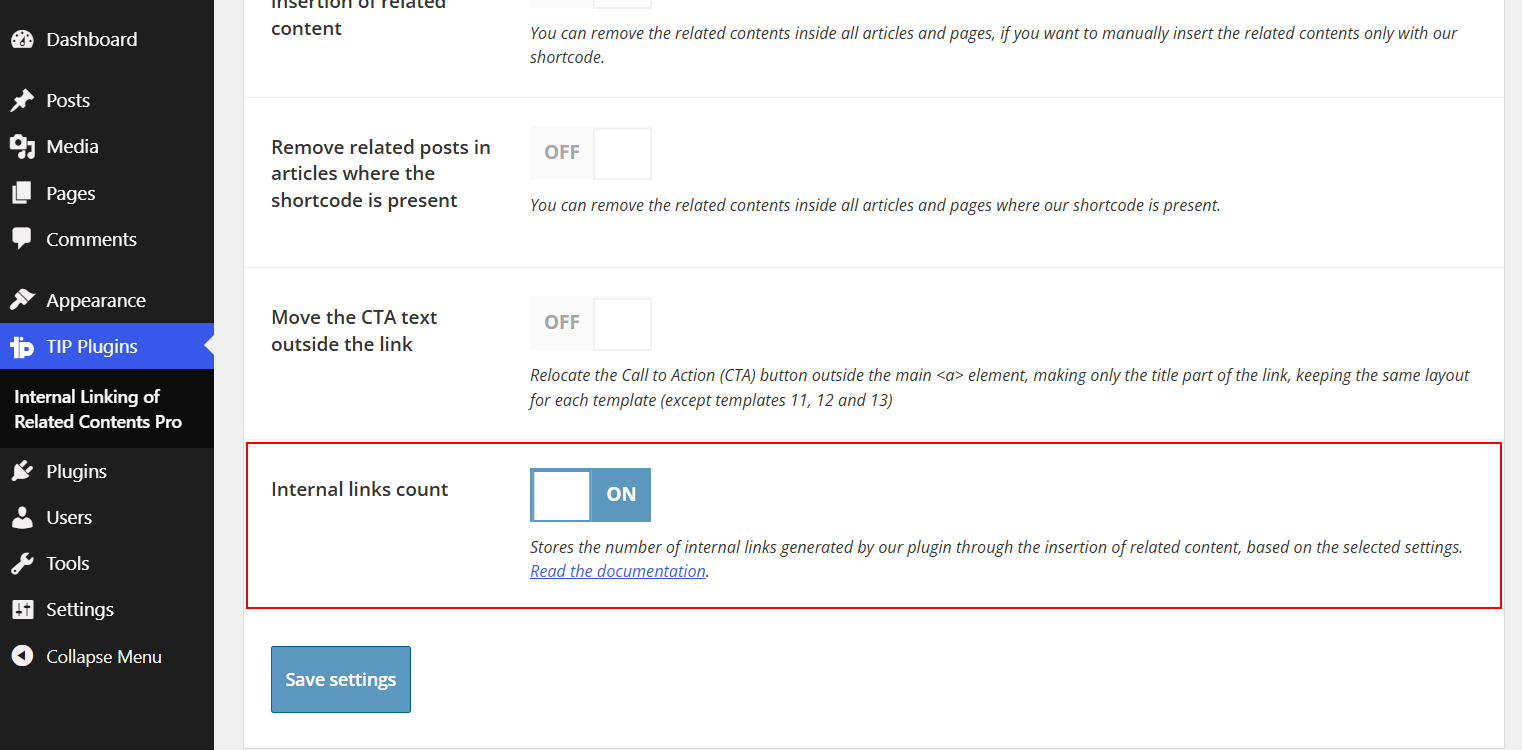
Enable the internal links count
- Go to Internal Linking of Related Contents Pro.
- Open the Plugin settings tab.
- Open Miscellaneous settings.
- Enable Internal links count.
- Save the settings.
Once enabled, a new Internal Links by ILRCP column will be displayed in the WordPress content list.
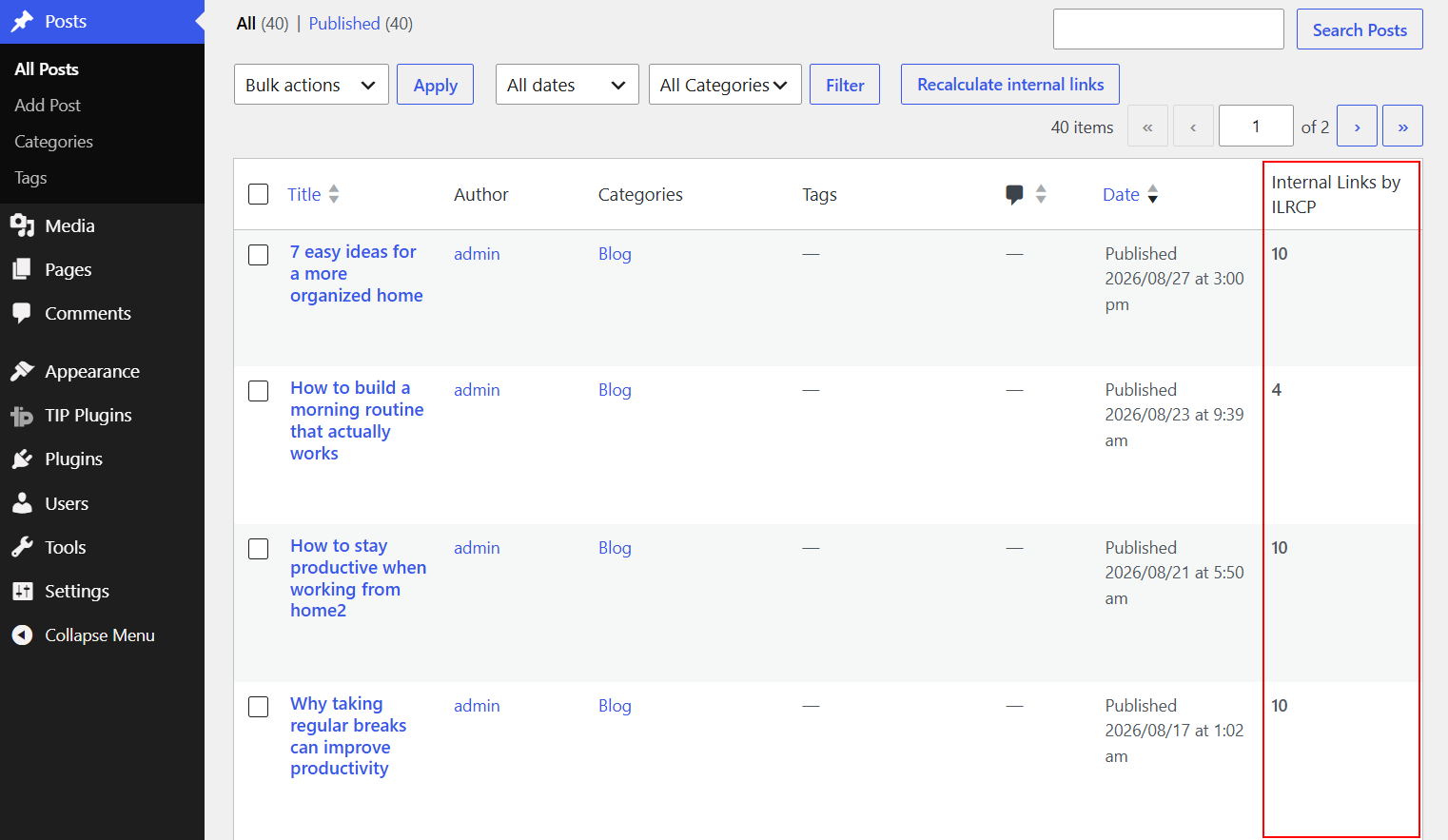
This column shows the number of related contents generated by the plugin for each published item.
How the count is calculated
The plugin calculates the number of ILRCP related contents actually rendered inside the final content.
The value represents the number of related content cards generated by the plugin, rather than the total number of HTML <a> links contained in the article.
This includes related contents generated through automatic insertion, the [ilrc], [ilrc_advanced] and [ilrc_archives] shortcodes, Gutenberg blocks, Elementor widgets, and other components that use the plugin’s related content renderer.
A related content card created with a custom URL is also included in the count, even when the URL points to an external website, because the card itself is still generated by ILRCP.
Regular HTML links that are not generated by ILRCP are not included.
The result therefore takes into account the current plugin configuration, including the selected search engine, number of related contents, filters, exclusions, automatic insertion settings, and other options that may affect the final output.
The count is stored for each published content and is automatically updated when the plugin processes that content again.
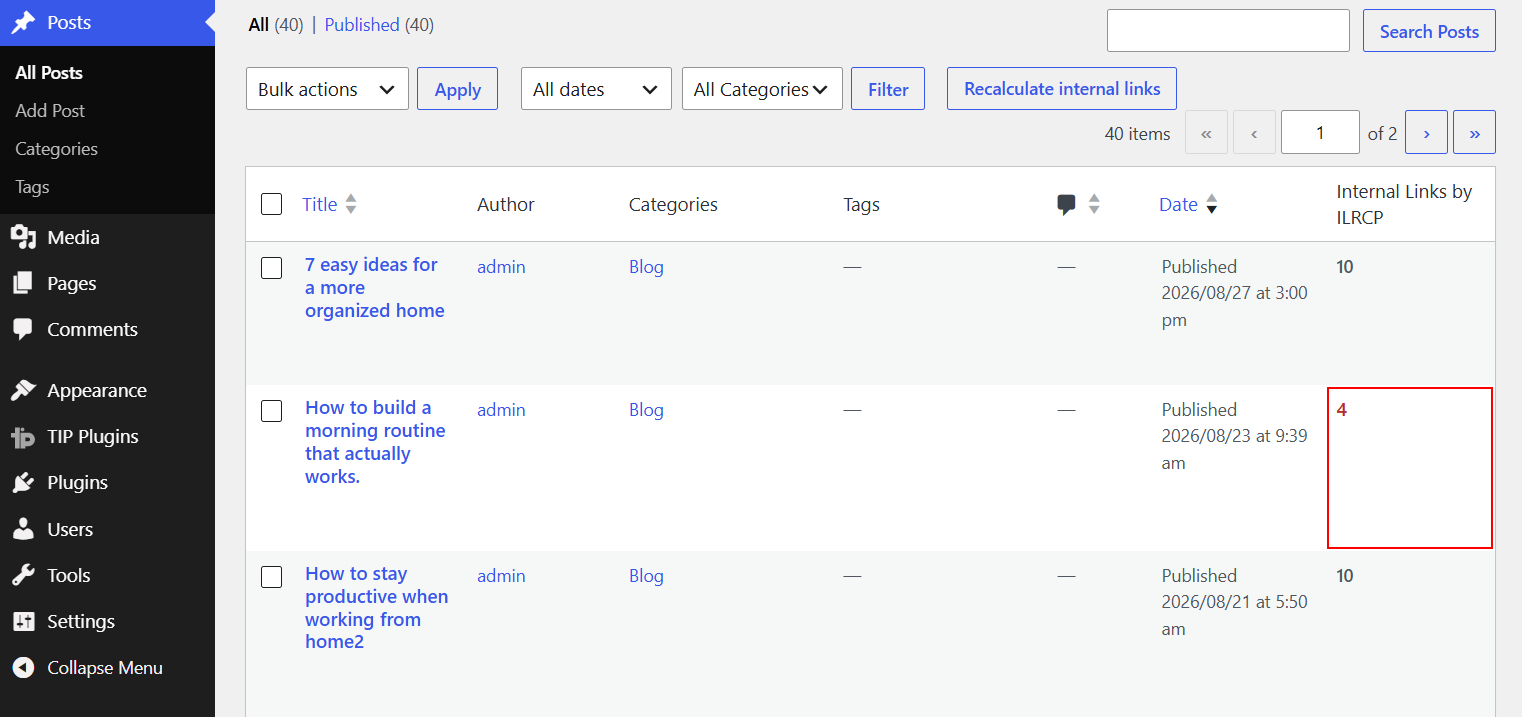
When a content item or a plugin setting that may affect the generated related contents changes, the existing count is displayed in red to indicate that it is outdated and needs to be recalculated.
Recalculate internal links
After enabling this feature, existing contents may not have a stored count yet, or some previously calculated values may need to be updated.
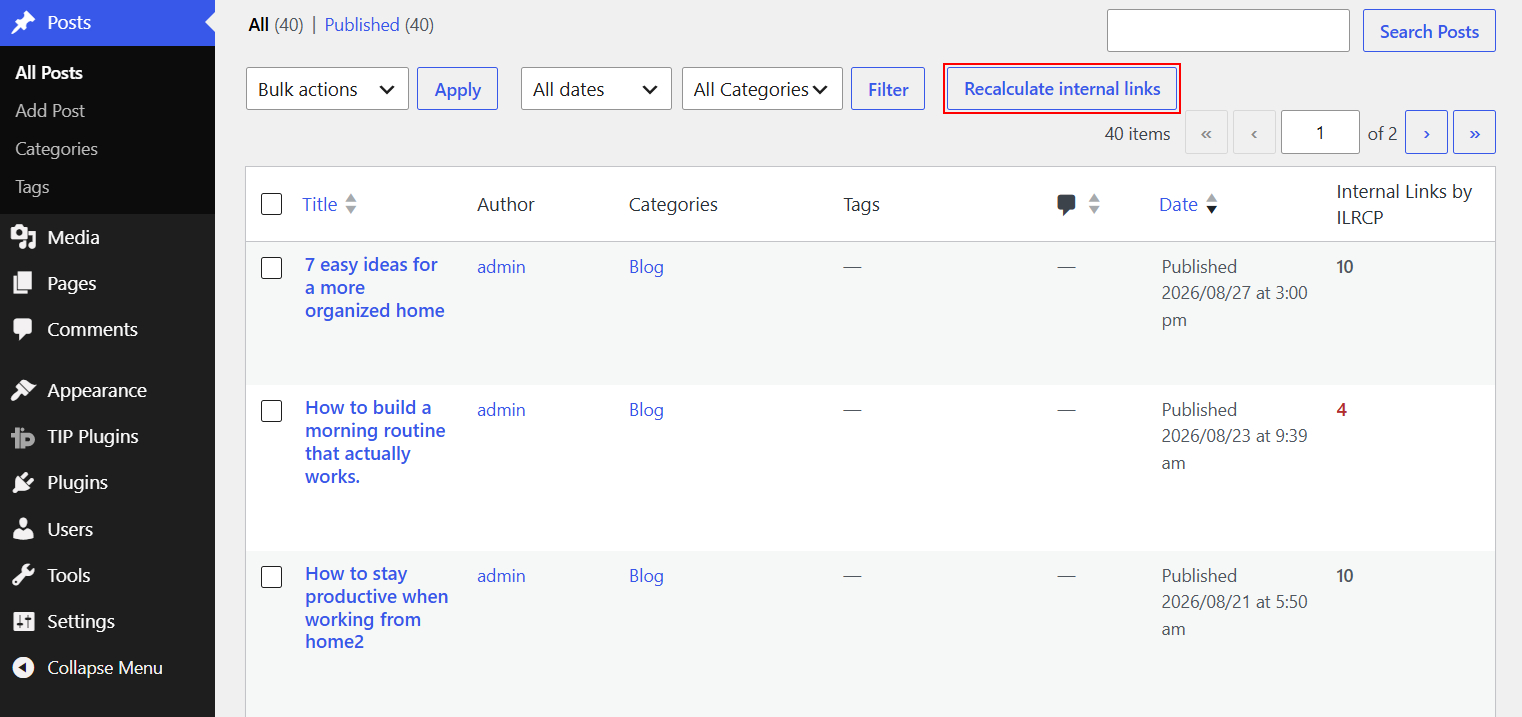
Go to the WordPress list of posts, pages, or a supported custom post type and click Recalculate internal links.
The plugin processes only the contents that require recalculation, including contents whose count:
- has not been calculated yet;
- is outdated;
- could not be calculated correctly during a previous attempt.
Contents whose count is already up to date are skipped.
To reduce server load, the recalculation is performed in small batches.
After each batch, the plugin displays the number of processed contents and any errors. If additional contents still need to be processed, click Continue recalculation to process the next batch.
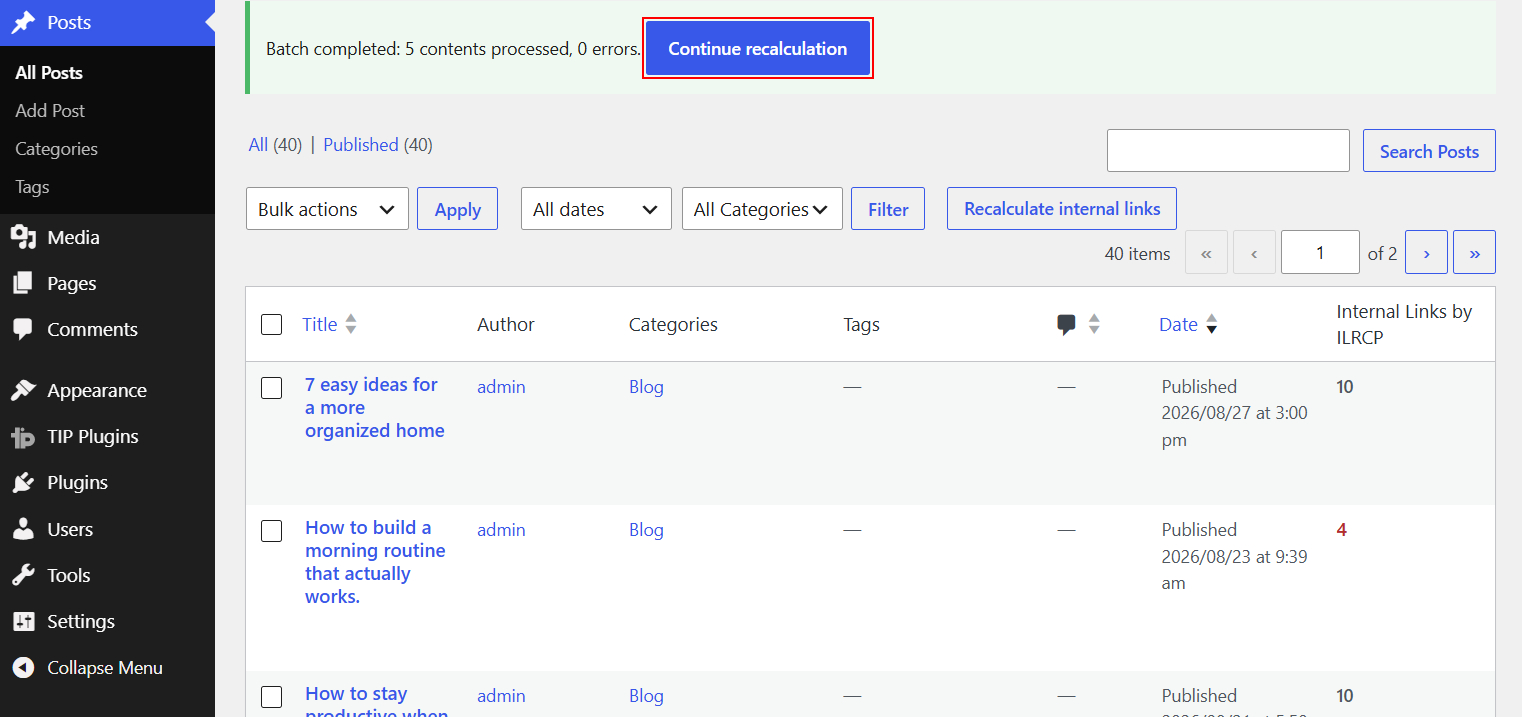
This function can also be used after changing plugin settings or contents that may affect the generated related links.
If Recalculate internal links is selected again while a recalculation is still in progress, the plugin continues from the remaining contents instead of starting again from contents whose counts are already up to date.
Alternatively, manual recalculation is not required. When WordPress processes content again on the frontend, the plugin automatically recalculates and updates its internal links count, so outdated or missing values will gradually be refreshed as contents are viewed.
If a full-page caching system is active, this automatic update may be delayed because WordPress may not process the content again until the cached page expires or is cleared.
Count status
The Internal Links by ILRCP column also provides a visual indication of the current status of each value:
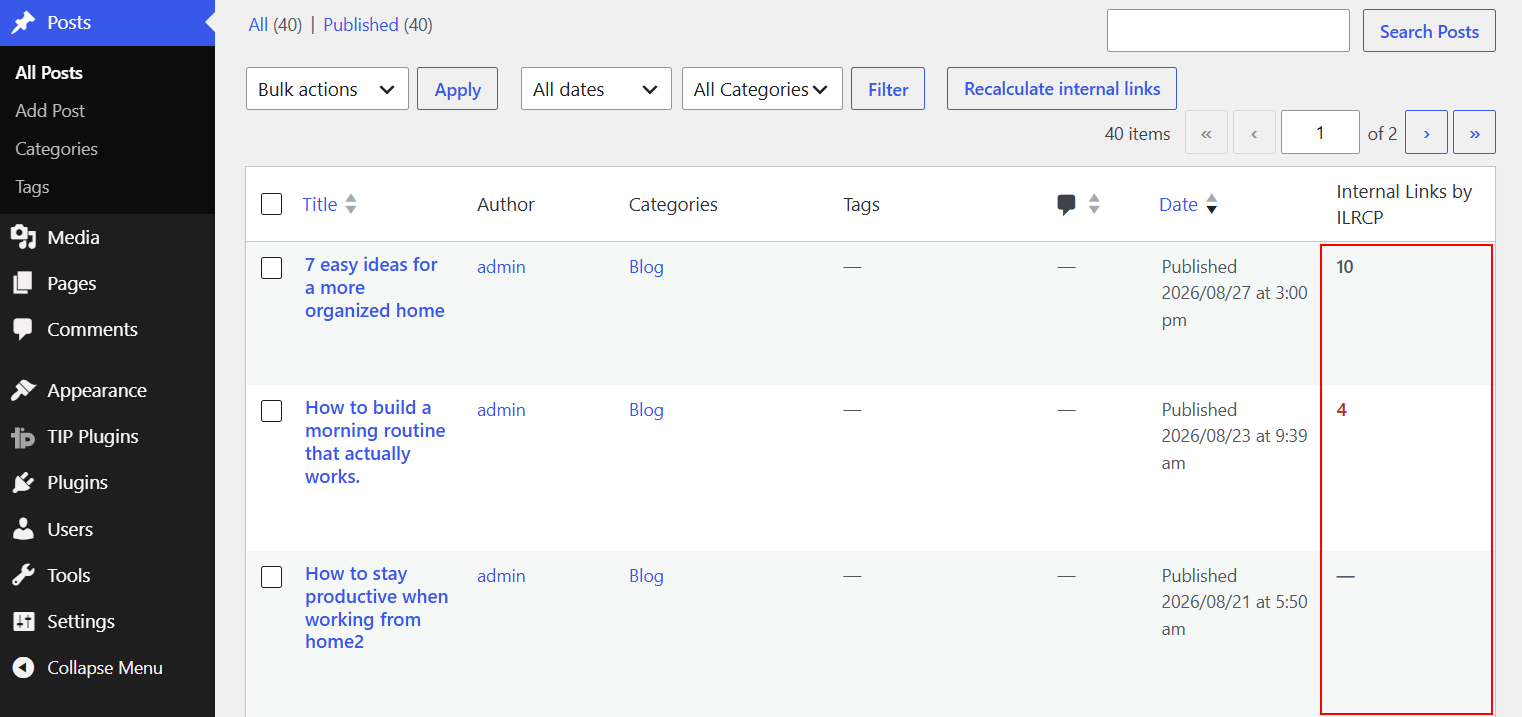
- A regular value indicates that the count is up to date.
- A red value indicates that the stored count is outdated and needs to be recalculated.
- A dash indicates that the content has not been calculated yet.
- If an error occurs during the calculation, the value is highlighted to indicate that another recalculation may be required.
This makes it possible to quickly check how many internal links are being generated by the plugin across your website and identify contents whose count still needs to be calculated or updated.