This guide explains how to create, edit, duplicate, delete, and save countdowns.
Create a new countdown
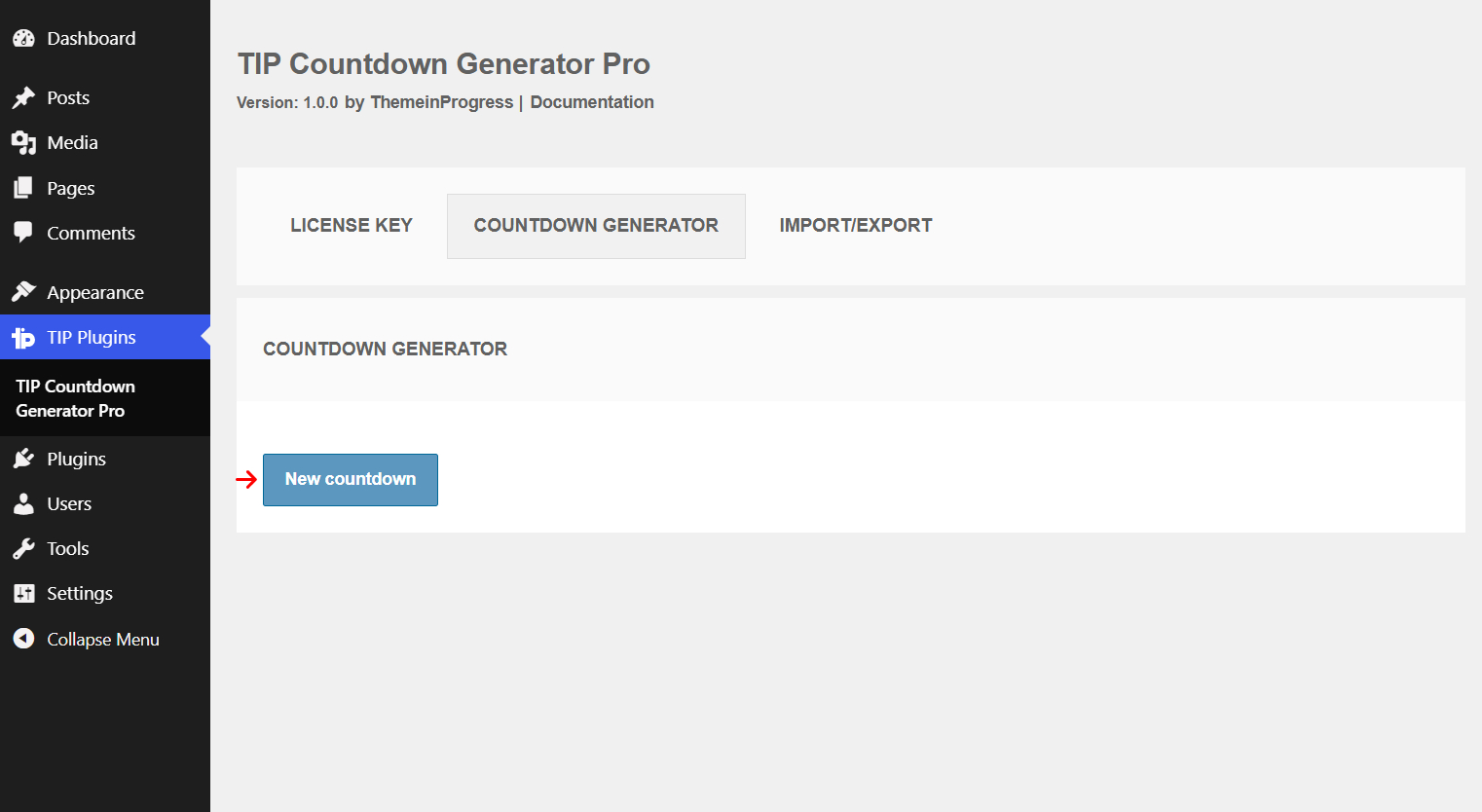
- Open the plugin admin page.
- Click New countdown.
- The plugin creates a new countdown with default settings.
- Open the countdown and edit the settings on the Settings page.
- Save with Save countdown or Save and exit.
Edit an existing countdown
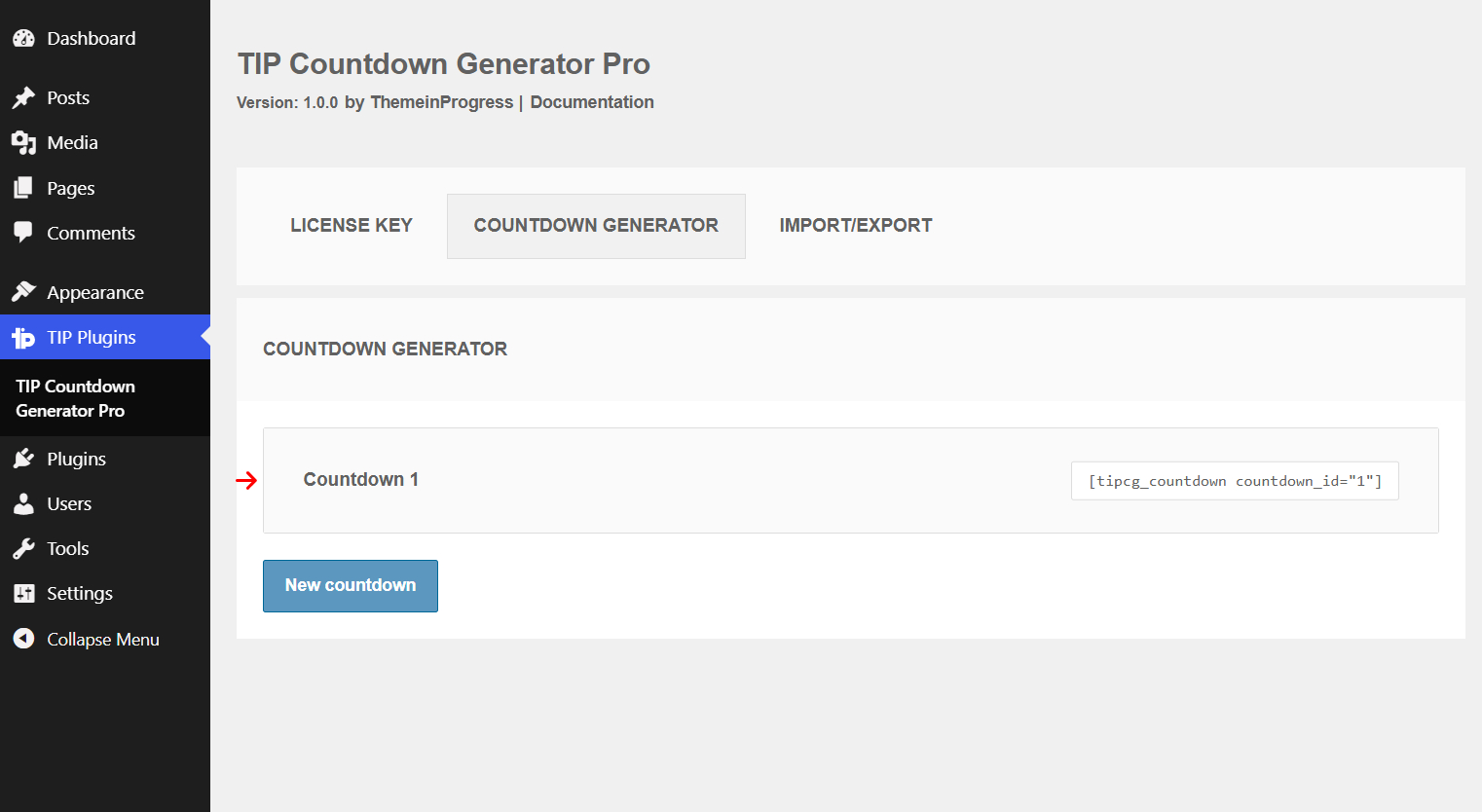
- Click the countdown title in the list.
- Edit the desired options.
- Save the changes.
Countdown actions
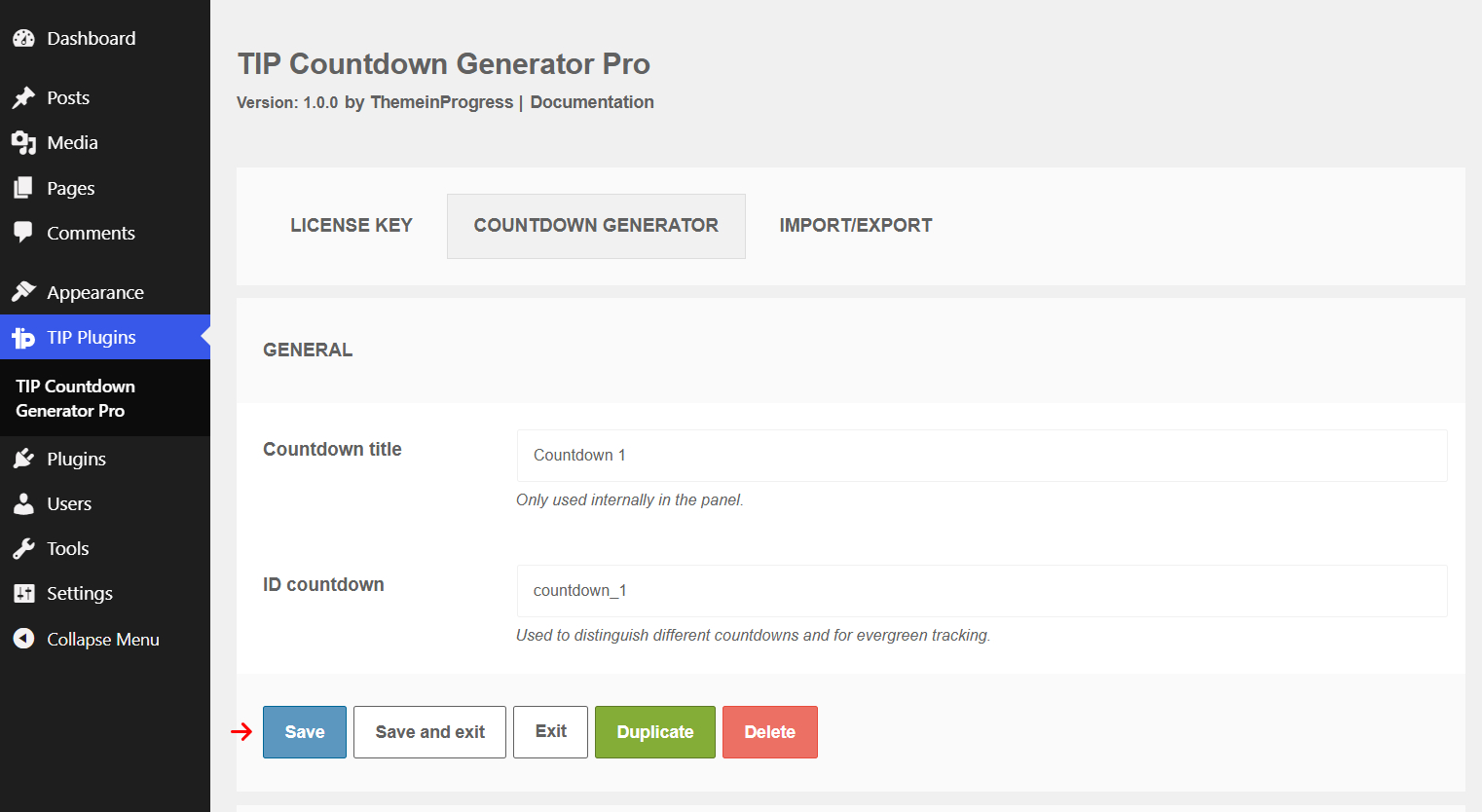
Save
What it does
Saves the current countdown without leaving the edit screen.
When to use it
When you want to save your changes and continue working on the same timer.
Effect on the frontend
The saved changes are applied to the shortcode linked to the countdown.
Important notes
If you change the countdown ID, timer type, duration, or tracking method, the timer behavior may change for visitors.
Save and exit
What it does
Saves the countdown and returns to the countdown list.
When to use it
When you have finished the configuration.
Effect on the frontend
The changes are applied as with Save countdown.
Duplicate
What it does
Creates a copy of the current countdown.
When to use it
When you want to create a timer similar to an existing one.
Effect on the frontend
The copy will have a new shortcode and a separate countdown ID.
Important notes
For Evergreen timers, the copy uses separate tracking. The new countdown does not inherit the state of the original timer.
Delete
What it does
Deletes the current countdown.
When to use it
When the timer should no longer be used.
Effect on the frontend
Shortcodes linked to the deleted countdown will no longer display that timer.
Important notes
Deletion removes the countdown configuration. Any existing tracking data may remain in the database until automatic cleanup.
Exit
What it does
Returns to the list without saving recent changes.
When to use it
Only when you want to exit without keeping the changes you made.