The Settings page contains all the options available for a single countdown.
The settings are divided into sections:
- General
- Appearance
- Timer
- Expiry action
- Shortcode
General
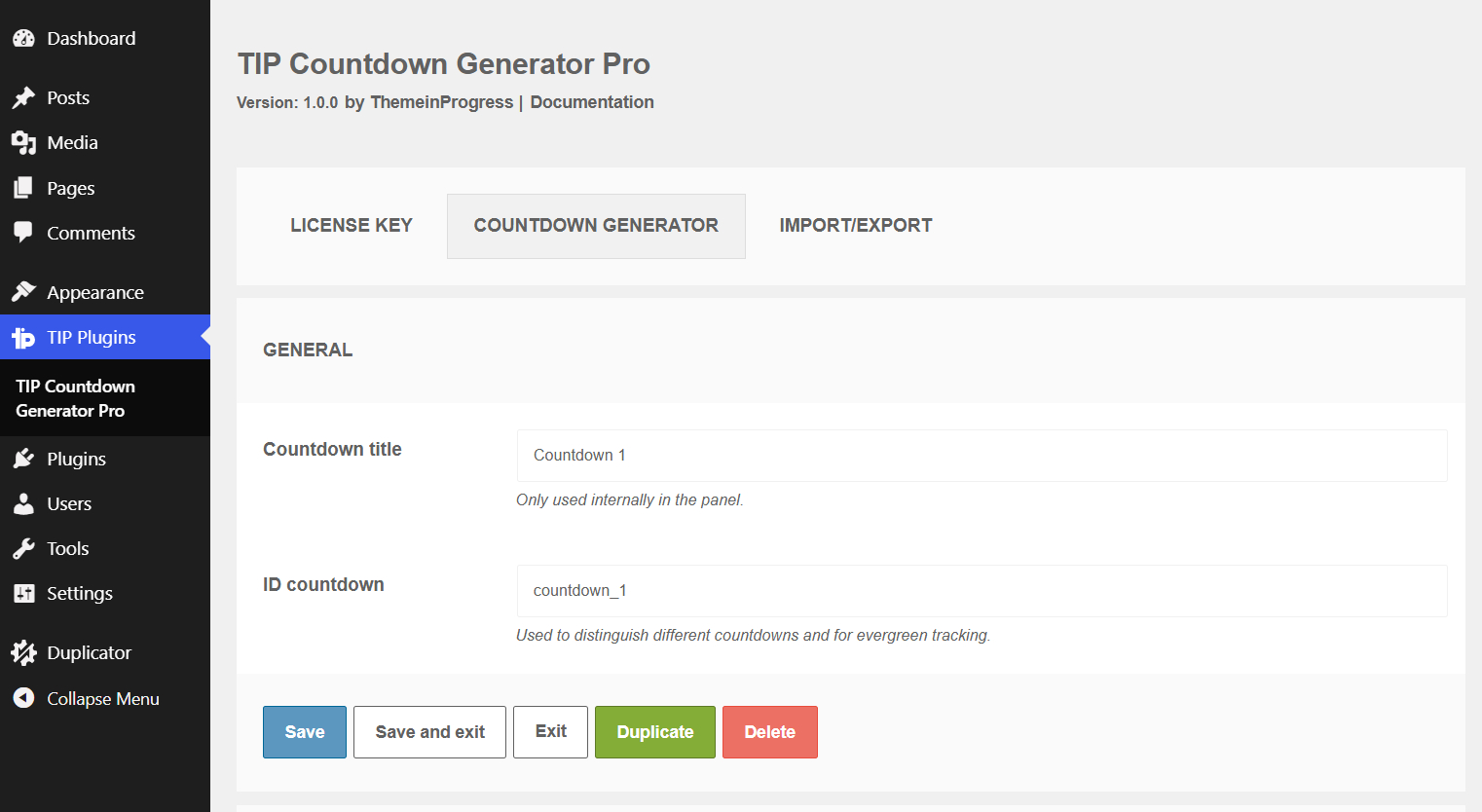
Countdown title
What it does
Sets the internal name of the countdown.
When to use it
Use it to easily identify the timer in the admin area, for example 24-hour offer, June webinar, weekend promo, or checkout timer.
Effect on the frontend
The title is not automatically displayed on the website.
Important notes
It is used only for internal management.
Countdown ID
What it does
Identifies the countdown and distinguishes it from other timers.
When to use it
Use a clear and stable ID, for example offerta_24h, webinar_giugno, promo_checkout, or timer_corso.
Effect on the frontend
The plugin uses this ID to distinguish the timer and, in Evergreen countdowns, to link tracking to the correct countdown.
Important notes
Do not change the ID of an Evergreen timer that has already been published, unless you want the tracking to restart.
Practical warning
If you change the countdown ID, the plugin will no longer recognize the old tracking data linked to the previous ID. For many visitors, the Evergreen timer may therefore restart from the beginning.
Appearance
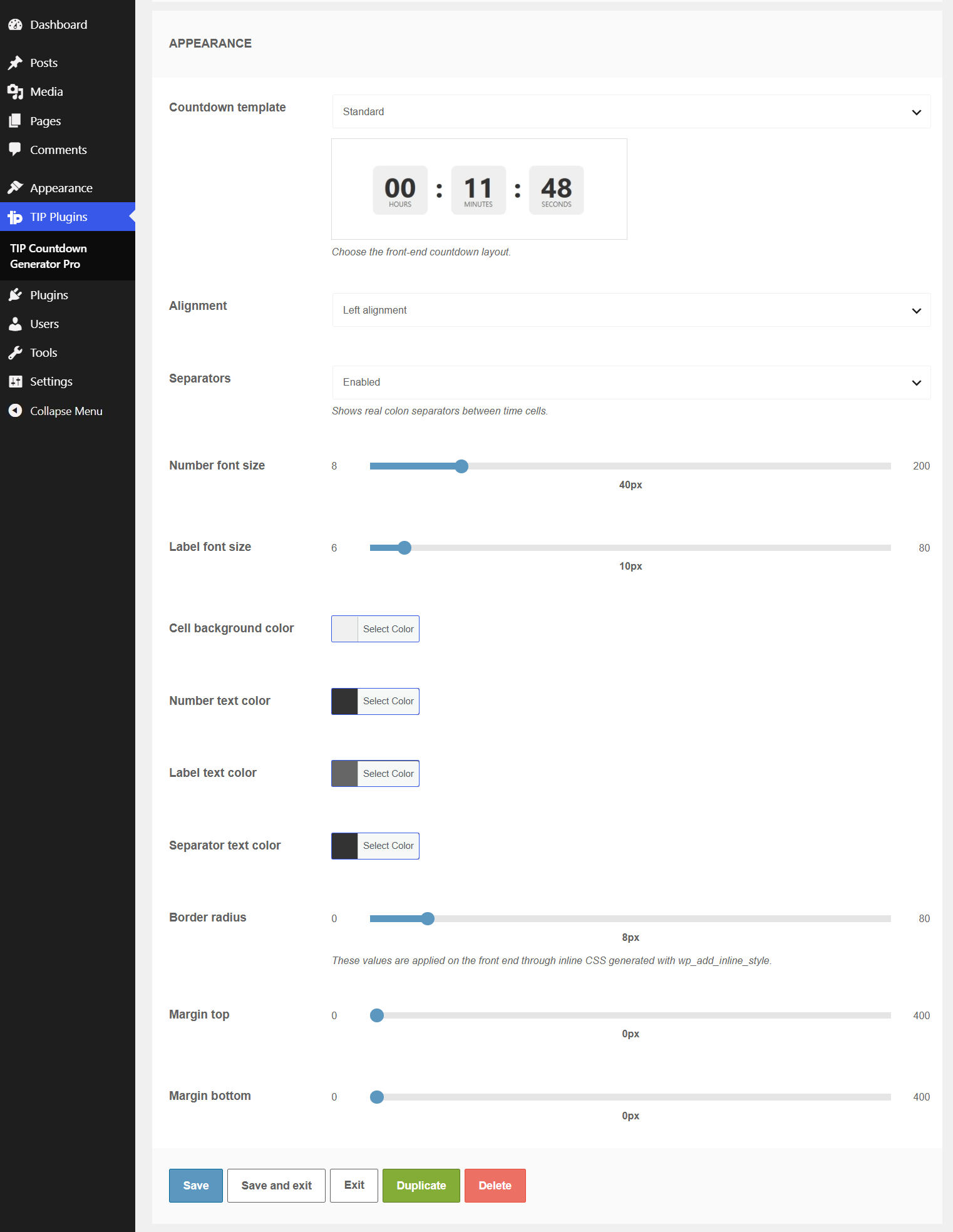
Countdown template
What it does
Selects the graphic layout of the countdown.
Available options:
- Standard
- Animated Flip
- Flip Clock
- Typewriter
- Paper
When to use it
Use it to adapt the timer to the style of the page.
Effect on the frontend
Changes how days, hours, minutes, and seconds are displayed.
Important notes
The template changes only the appearance, not the timer logic.
Countdown alignment
What it does
Controls the horizontal alignment of the countdown inside its container.
Available options:
- Left alignment
- Center alignment
- Right alignment
When to use it
Use it to align the timer with the layout of the page or with nearby content.
Effect on the frontend
Adds an alignment class to the .tipcg_countdown element and changes the justify-content property.
Important notes
Center alignment is used by default. This option changes only the countdown position, not the timer logic or the appearance of individual time units.
Separators
What it does
Enables or disables the separators between the time cells.
Options:
- Enabled
- Disabled
When to use it
Use it if you want to show or hide visual separators, such as colons.
Effect on the frontend
When enabled, the countdown displays separators between days, hours, minutes, and seconds.
Important notes
When the days are equal to zero, the days block may be hidden automatically.
Number font size
What it does
Sets the size of the numbers.
When to use it
Use it to make the countdown more prominent or more compact.
Effect on the frontend
Larger numbers increase visual impact; smaller numbers are suitable for side boxes or narrow layouts.
Important notes
The value is applied in pixels.
Label font size
What it does
Sets the size of the labels, such as Days, Hours, Minutes, Seconds.
When to use it
Use it to improve readability and proportion between numbers and labels.
Effect on the frontend
Changes the size of the labels below the numbers.
Important notes
Labels should usually be smaller than the numbers.
Cell background color
What it does
Sets the background color of the countdown cells.
When to use it
Use it to integrate the timer with the page design.
Effect on the frontend
Changes the color of the blocks that contain the numbers.
Important notes
Maintain good contrast with the number color.
Number text color
What it does
Sets the color of the numbers.
When to use it
Use it to improve contrast and readability.
Effect on the frontend
Changes the color of the numeric values.
Important notes
On a dark background, use light numbers; on a light background, use dark numbers.
Label text color
What it does
Sets the color of the labels.
When to use it
Use it to align the timer with the website style.
Effect on the frontend
Changes the color of the text below the numbers.
Important notes
Labels must remain readable even if they are less prominent than the numbers.
Separator text color
What it does
Sets the color of the separators.
When to use it
Use it when the separators are enabled.
Effect on the frontend
Changes the color of the separators between the cells.
Important notes
It only has an effect if Separators is set to Enabled.
Border radius
What it does
Sets the rounding of the cell corners.
When to use it
Use it to make the timer more square or softer.
Effect on the frontend
A low value creates sharp corners; a high value creates rounded corners.
Important notes
The visual effect may vary depending on the selected template.
Margin top
What it does
Adds space above the countdown.
When to use it
Use it if the timer is too close to the previous element.
Effect on the frontend
Increases the vertical distance above the timer.
Important notes
The value is applied in pixels.
Margin bottom
What it does
Adds space below the countdown.
When to use it
Use it if the timer is too close to the next element.
Effect on the frontend
Increases the vertical distance below the timer.
Important notes
The value is applied in pixels.
Timer
Countdown type
What it does
Selects the countdown logic.
Available options:
- Evergreen
- Specific date
- Recurring
When to use it
Use Evergreen for personal timers that start on the first visit. Use Specific date for a deadline that is the same for everyone. Use Recurring for timers that repeat.
Effect on the frontend
The remaining time is calculated differently based on the selected type.
Important notes
Only the Evergreen timer uses visitor tracking.
Evergreen timer settings
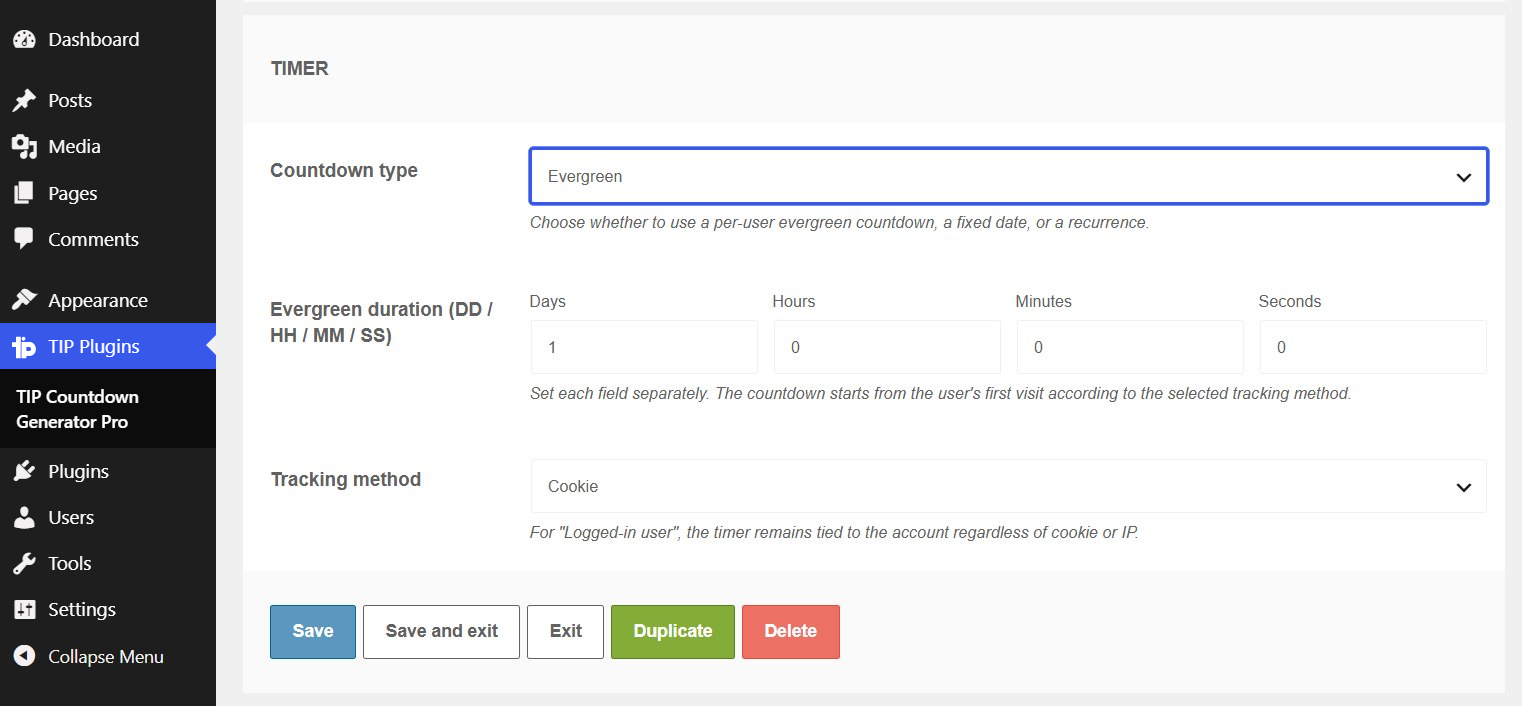
These options are used only if Countdown type is set to Evergreen.
Evergreen duration
What it does
Sets the duration of the personal countdown.
Available fields:
- Days
- Hours
- Minutes
- Seconds
When to use it
Use it for individual offers, for example 15 minutes, 24 hours, 3 days, or 7 days.
Effect on the frontend
Each new visitor sees the countdown start from the set duration.
Important notes
The timer starts from the first recorded access for that visitor, not from a fixed date.
Tracking method
What it does
Defines how the plugin recognizes the visitor.
Available options:
- Cookie
- IP
- Cookie or IP
- Logged-in user
When to use it
Choose the method based on how stable you want the tracking to be.
Effect on the frontend
Determines whether the visitor continues to see the same countdown or whether the timer may restart.
Important notes
The tracking method applies only to Evergreen timers.
Specific date timer settings
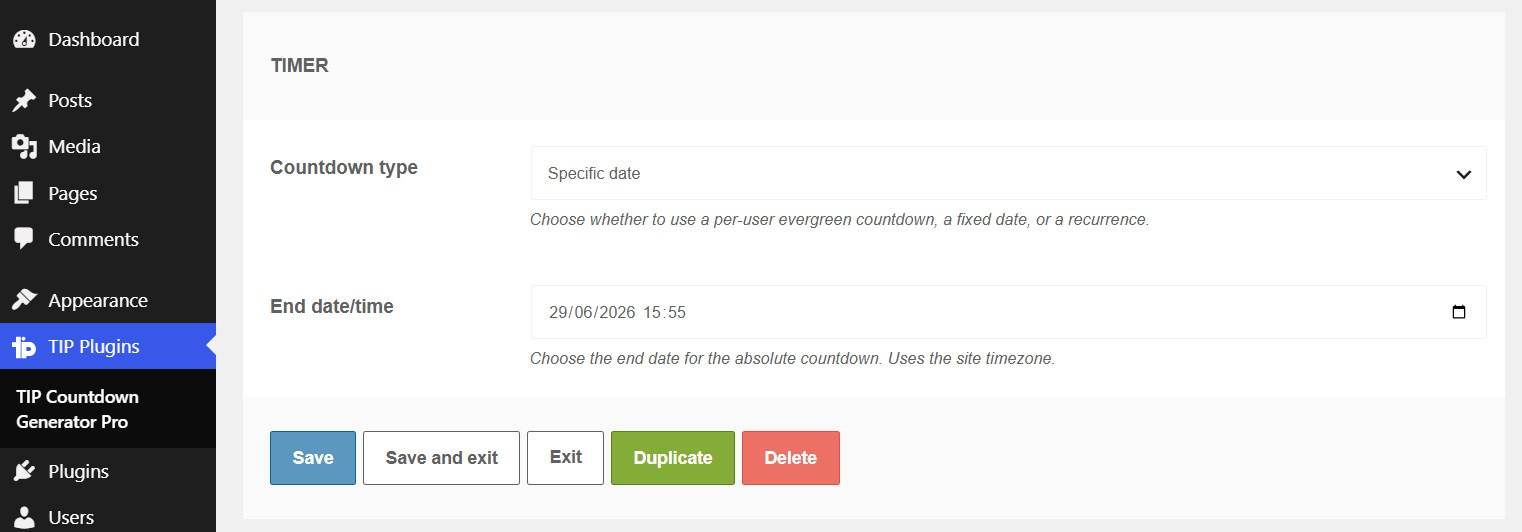
This option is used only if Countdown type is set to Specific date.
End date/time
What it does
Sets the final date and time of the countdown.
When to use it
Use it for deadlines that are the same for everyone, such as the end of a promotion, registration closing, webinar start, or product launch.
Effect on the frontend
All visitors see the same remaining time.
Important notes
The timer uses the website timezone. It does not use cookie, IP, or user tracking.
Recurring timer settings
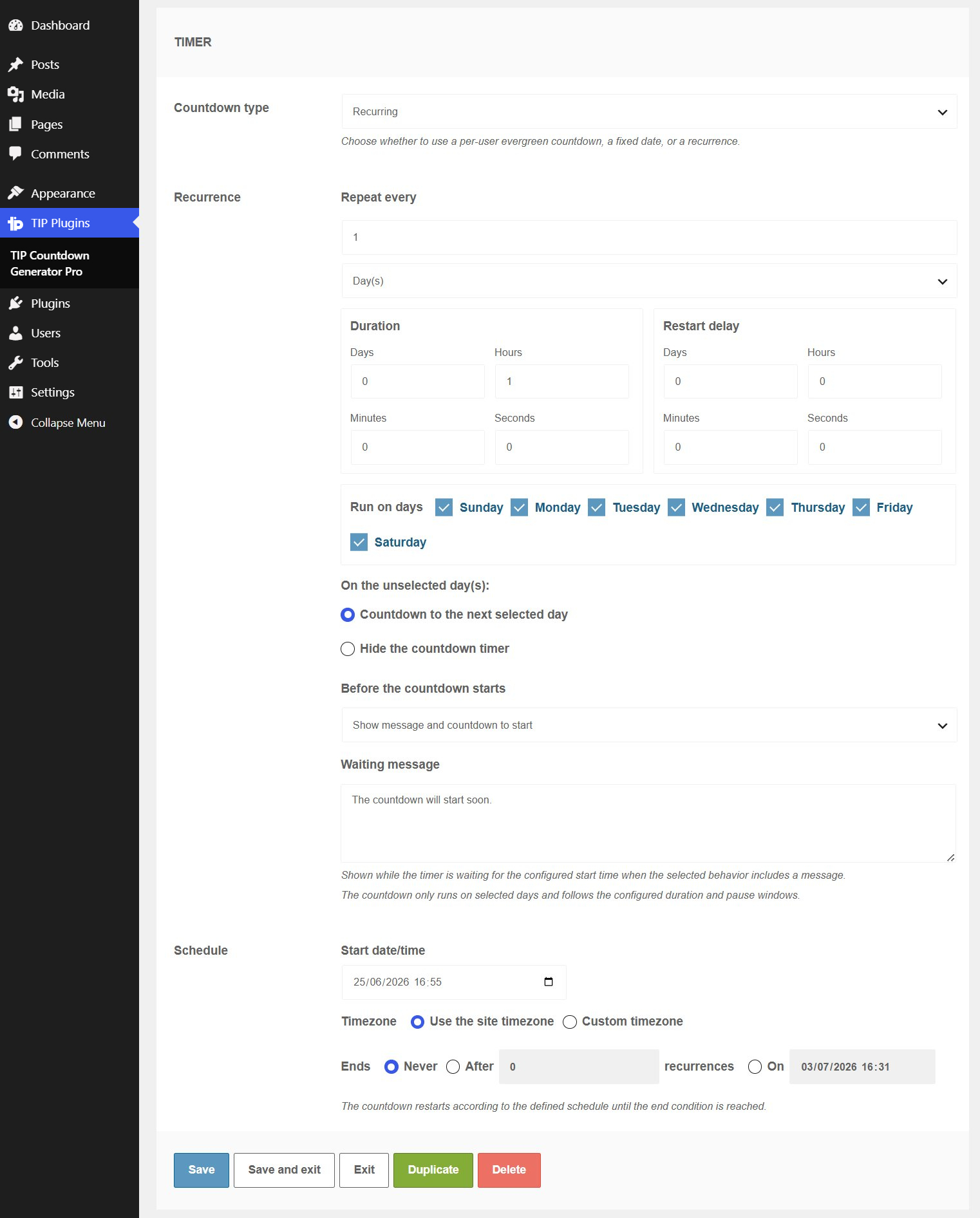
These options are used only if Countdown type is set to Recurring.
Repeat every
What it does
Defines how often the countdown repeats.
Options:
- number;
- Day(s) or Week(s) unit.
When to use it
Use it to create daily or weekly cycles.
Effect on the frontend
The timer is recalculated based on the set frequency.
Important notes
The recurrence is calculated starting from Start date/time.
Duration
What it does
Sets how long each active recurrence lasts.
Fields:
- Days
- Hours
- Minutes
- Seconds
When to use it
Use it to define the duration of the active window.
Effect on the frontend
During the active window, the timer shows the time remaining until the end of the current recurrence.
Important notes
The recurrence duration is different from the frequency with which the cycle repeats.
Restart delay
What it does
Adds a pause before the next recurrence.
Fields:
- Days
- Hours
- Minutes
- Seconds
When to use it
Use it if you want to create a gap between the end of one recurrence and the start of the next.
Effect on the frontend
The timer remains in a waiting state before the new cycle.
Important notes
The delay may affect when the next active window is displayed.
Run on days
What it does
Selects the days of the week on which the timer can run.
Available days:
- Sunday
- Monday
- Tuesday
- Wednesday
- Thursday
- Friday
- Saturday
When to use it
Use it for timers that are active only on specific days.
Effect on the frontend
The timer considers only the selected days.
Important notes
If no day is selected, the plugin may treat the schedule as valid for all days.
On the unselected day(s)
What it does
Defines what happens on unselected days.
Options:
- Countdown to the next selected day
- Hide the countdown timer
When to use it
Use Countdown to the next selected day if you want to show the time remaining until the next valid day. Use Hide the countdown timer if you do not want to show anything on excluded days.
Effect on the frontend
The timer is shown as a wait until the next selected day, or it is hidden.
Important notes
This option applies only to the days excluded from the selection.
Before the countdown starts
What it does
Defines what to show before the next recurrence starts.
Options:
- Hide timer completely
- Show message only
- Show message and countdown to start
When to use it
Use Hide timer completely if you do not want to show anything. Use Show message only if you want to show waiting text. Use Show message and countdown to start if you want to show both a message and the time remaining until the start.
Effect on the frontend
Controls the timer state before the active window.
Important notes
This is not the same as Action on expiry. This option manages the wait before the recurrence, not the final end of the series.
Waiting message
What it does
Sets the message shown during the waiting period.
When to use it
Use it when Before the countdown starts is set to Show message only or Show message and countdown to start.
Effect on the frontend
The message is shown before the recurrence starts.
Important notes
If you choose Hide timer completely, the message is not shown.
Start date/time
What it does
Sets the date and time from which the recurring schedule starts.
When to use it
Use it to define the starting point of the cycle.
Effect on the frontend
The plugin calculates all recurrences starting from this date.
Important notes
An incorrect date may shift all subsequent recurrences.
Timezone
What it does
Defines the timezone used for the recurrence.
Options:
- Use the site timezone
- Custom timezone
When to use it
Use Use the site timezone in most cases. Use Custom timezone if the timer must follow a timezone different from the website timezone.
Effect on the frontend
Recurring days and times are calculated based on the selected timezone.
Important notes
The timezone is especially important for timers that are active only on certain days of the week.
Custom timezone
What it does
Allows you to select a custom timezone.
When to use it
Use it only if Timezone is set to Custom timezone.
Effect on the frontend
The recurring schedule follows the selected timezone.
Important notes
If you do not have specific needs, use the website timezone.
Ends
What it does
Defines when the recurring series ends.
Options:
- Never
- After
- On
When to use it
Use Never for a recurrence with no scheduled end. Use After to end after a number of recurrences. Use On to end on a specific date.
Effect on the frontend
When the series ends, the action configured in Expiry action is applied.
Important notes
In Recurring timers, the final expiry applies to the complete series, not necessarily to each individual recurrence.
After recurrences
What it does
Sets the maximum number of recurrences.
When to use it
Use it when you want the timer to repeat only a certain number of times.
Effect on the frontend
After the configured number, the timer ends.
Important notes
The field is relevant only if Ends is set to After.
On date/time
What it does
Sets an end date and time for the recurring series.
When to use it
Use it when the recurrence must end by a specific date.
Effect on the frontend
After that date, the plugin does not create new recurrences.
Important notes
The field is relevant only if Ends is set to On.
Expiry action
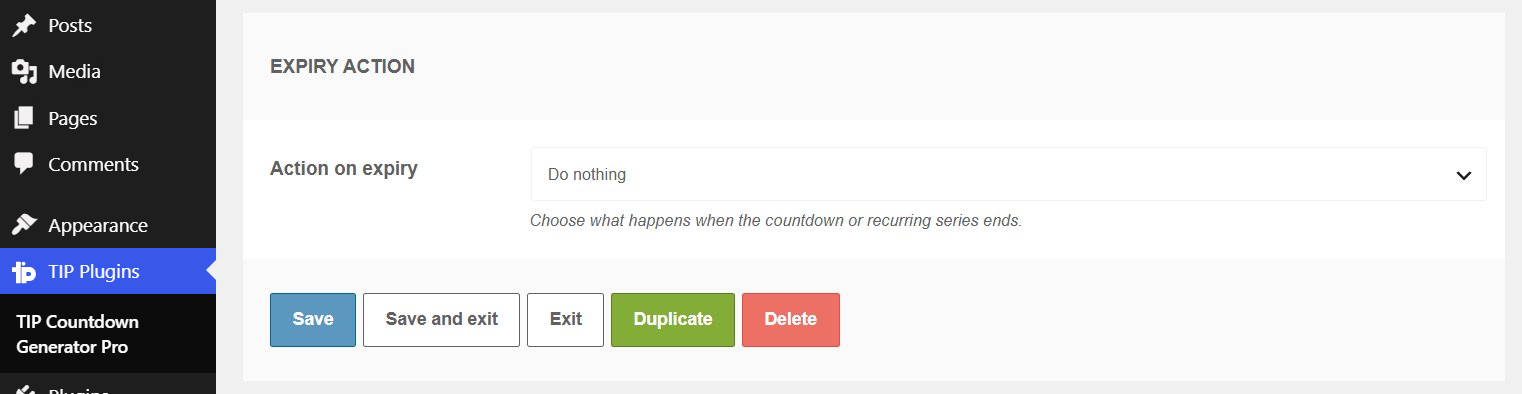
Action on expiry
What it does
Defines what happens when the countdown ends.
Available options:
- Do nothing
- Hide the timer
- Redirect to a URL
- Display a message
When to use it
Use it to decide the final behavior of the timer.
Effect on the frontend
Do nothing leaves the timer at zero. Hide the timer hides the timer. Redirect to a URL redirects the visitor. Display a message replaces the timer with a message.
Important notes
In Recurring timers, this action is applied when the recurring series ends.
Redirect URL
What it does
Sets the page to which the visitor is redirected when the countdown expires.
When to use it
Use it if you want to send the user to an alternative page, such as an expired offer page, closed cart page, information page, or new promotion.
Effect on the frontend
When the timer expires, the browser is redirected to the specified URL.
Important notes
It works only if Action on expiry is set to Redirect to a URL.
Expiry message
What it does
Sets the message to show when the timer expires.
When to use it
Use it if you want to clearly communicate that the offer or time window has ended.
Effect on the frontend
The message is shown instead of the timer.
Important notes
It works only if Action on expiry is set to Display a message.
Shortcode
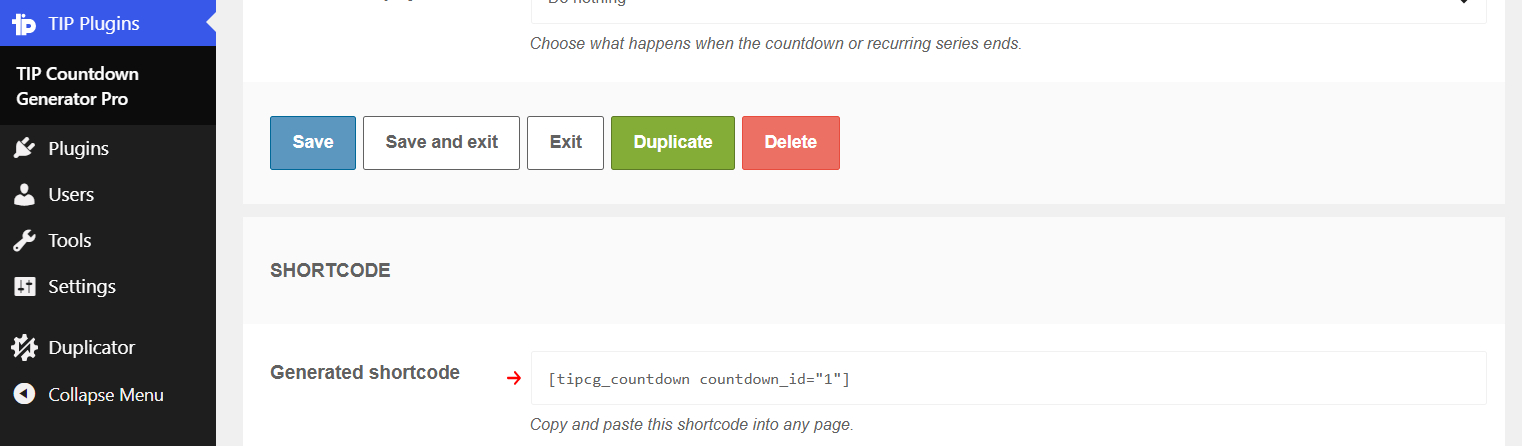
Generated shortcode
What it does
Shows the shortcode to copy and paste into the website.
Example:
[ tipcg_countdown countdown_id="1" ]
When to use it
Use it after configuring and saving the countdown.
Effect on the frontend
The plugin displays the countdown corresponding to the shortcode.
Important notes
You can insert the same shortcode on multiple pages. If the timer is Evergreen, the state remains linked to the same countdown ID.